Book Categories:


Wait, don't go!
Become a Member Today and Unlock Access to All eBooks!
Thousands of eBooks at your fingertips. Read, learn, and grow anytime, anywhere.
This quick guide shows how to easily send emails with Node-RED. This can be a useful feature to incorporate into your home automation system for many applications. For example, to send notifications to your email if a sensor reading is above or below a certain threshold, to send readings periodically to your email, to send a notification when motion is detected, and much more.
Before proceeding you need to have Node-RED installed. You can install Node-RED locally on your computer or on a Raspberry Pi, or on a cloud server. Check the following tutorials:
For a quick Node-RED getting started guide, take a look at the following tutorials:
There are Node-RED Nodes you can install that make it easy to send emails using Node-RED.
Go to Menu > Manage Palette > Install. Search for node-red-node-email and install those nodes.
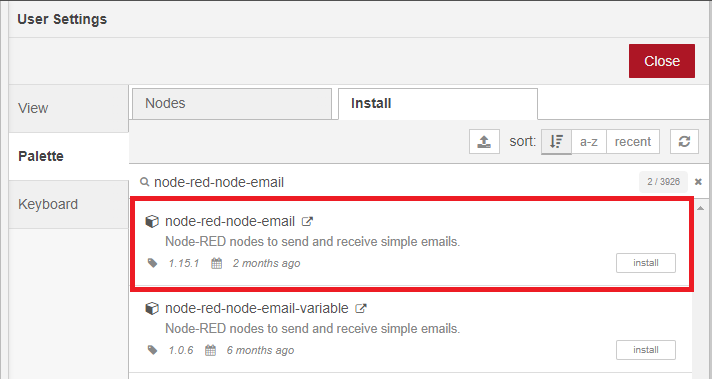

For more information about the nodes, you can check the following link:
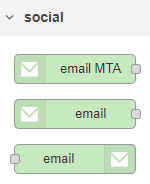
Now, you should have the email nodes on your Node-RED palette.
To send emails with Node-RED, you need a sender email account. We don’t recommend using your main email account to send emails using Node-RED. If something goes wrong in your flow or if by mistake, you make too many requests, you can be banned or have your account temporarily disabled. So, we recommend creating a new email account to send emails or using a secondary email account.
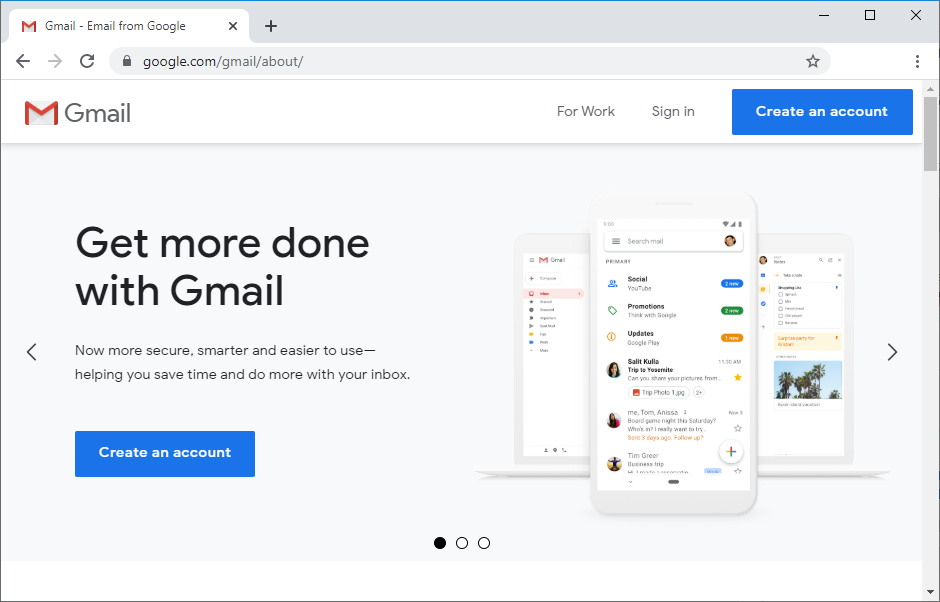
We’ll use a Gmail.com account to send the emails, but you can use any other email provider. The receiver email can be your personal email without any problem.
To create a new Gmail account for sending emails with Node-RED, go to this link.
You need to create an app password so that Node-RED can send emails using your Gmail account. An App Password is a 16-digit passcode that gives a less secure app or device permission to access your Google Account. Learn more about sign-in with app passwords here.
An app password can only be used with accounts that have 2-step verification turned on.
After enabling 2-step verification, you can create an app password.
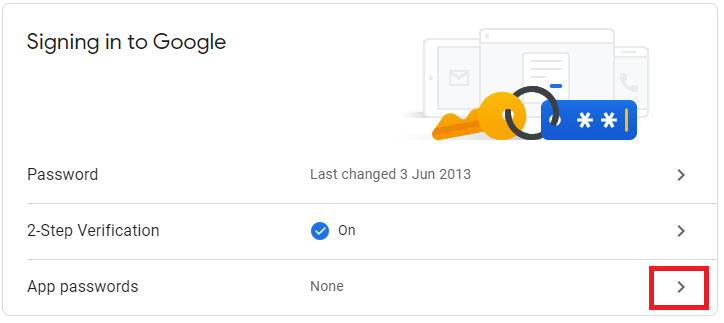
In the Select app field, choose mail. For the device, select Other and give it a name, for example, Node-RED. Then, click on Generate. It will pop-up a window with a password that you’ll use in Node-RED to send emails. Save that password (even though it says you won’t need to remember it) because you’ll need it later.
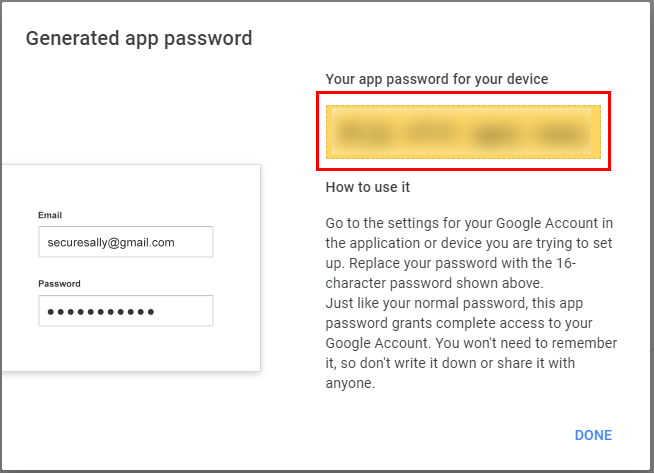
Now, you should have an app password that you’ll use on Node-RED to send the emails.
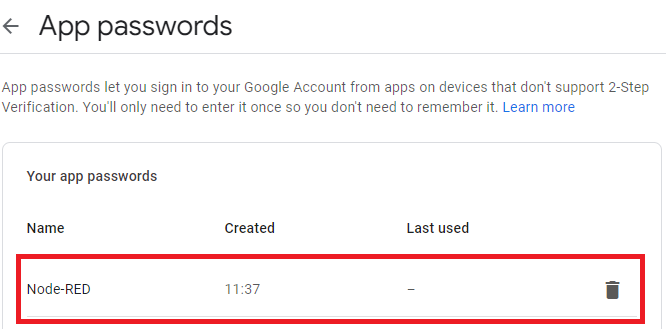
If you’re using a different email provider, check what you need to do to create an app password. You should be able to find the instructions with a quick google search “your email provider name + app password”.
If you’re using a Gmail account, these are the SMTP Server details:
For Outlook accounts, these are the SMTP Server settings:
For Live or Hotmail accounts, these are the SMTP Server settings:
If you’re using another email provider, you need to search for its SMTP Server settings. Now, you have everything ready to start sending emails with Node-RED.
Drag an email node to the flow.
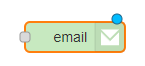
Drag an inject node to the flow and wire it to the email. The inject node will contain the email content.

To learn how we must configure the message for the email node, we can take a look at the email node documentation. Select the email node and then click on the help icon in the top right corner.

You’ll get information about how to use the node.
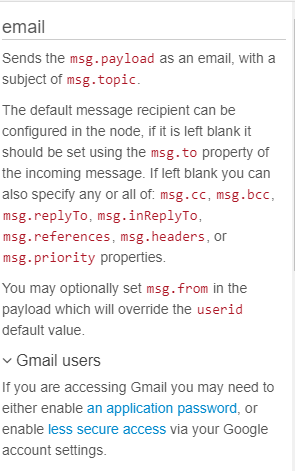
So, we must set the message content on msg.payload and the email subject on msg.topic. The recipient can be set in msg.to or in the email node (we’ll set it in the email node).
Double-click the inject node to edit its properties.
Add the email content on msg.payload. You need to set it as a String. Then, add the email subject on the msg.topic. It also must be set as a String.
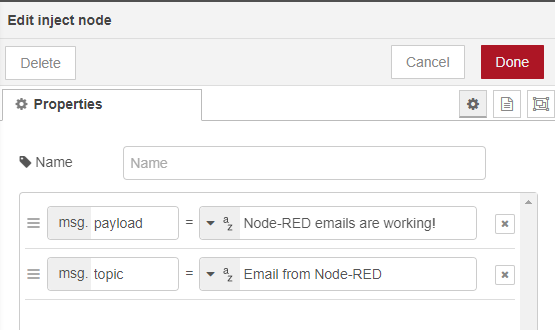
Now, double-click the email node to edit its properties. Insert the recipient email, the sender email, and the corresponding app password you generated previously.
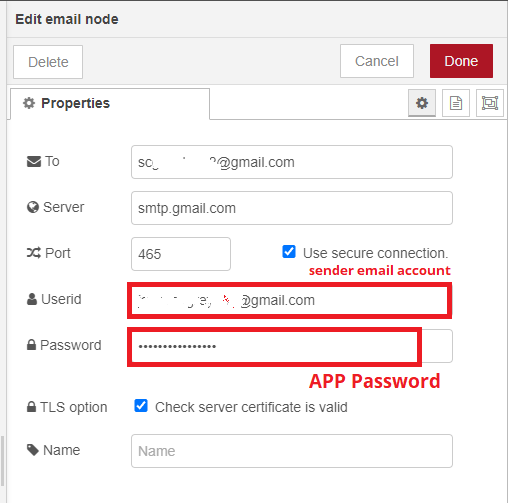
When you’re finished, click Done.
Now, deploy your application.

After deploying click on the left square on the inject node to trigger the email node.

If everything went as expected, you should have a new email on your recipient account.

That’s it! You learned an easy way to send emails with Node-RED.
As you can see, sending emails with Node-RED is very straightforward. We showed you a simple example with an inject node. The idea is to apply this feature in real-world scenarios. We’ll publish more tutorials about this subject, so stay tuned.
Thanks for reading.








