Book Categories:


Wait, don't go!
Become a Member Today and Unlock Access to All eBooks!
Thousands of eBooks at your fingertips. Read, learn, and grow anytime, anywhere.

This guide will show you how to monitor your Raspberry Pi system using InfluxDB Telegraf. You can collect metrics from the Raspberry Pi board (CPU usage, memory usage, disk usage, system load, CPU and GPU temperatures, and other useful data) to monitor the system using InfluxDB Telegraf. Telegraf is InfluxData’s data collection agent for collecting and reporting metrics.
Before proceeding, you must have InfluxDB installed on your Raspberry Pi. Follow the next tutorial:
There is an InfluxDB template that can be used to monitor your Raspberry Pi Linux system. An InfluxDB template is a prepackaged set of InfluxDB configurations that contain everything from dashboards and Telegraf configurations to notifications and alerts.
Templates reduce the setup time by giving you resources that are already configured for your use case. In this case, you’ll get a set of configurations that are ready to use to monitor your Raspberry Pi. To learn more about InfluxDB templates, you can check the following link:
We’ll use the Raspberry Pi Monitoring template that includes the following:
rasp-pi (7d retention)raspberry-pi + Telegraf plugin labels

Follow the next instructions to install the Raspberry Pi Monitoring template.
You need to get an InfluxDB token to be able to install the Raspberry Pi Monitoring template using Influx CLI (command line interface).
Go to your InfluxDB Interface:
http://Your_RPi_IP_address:8086
Once you’re on InfluxDB, on the left sidebar, click on Data/Load Data and then select the API Tokens tab. Click on the + Generate API Token to generate a new API Token. We’ll generate an All Access API Token.
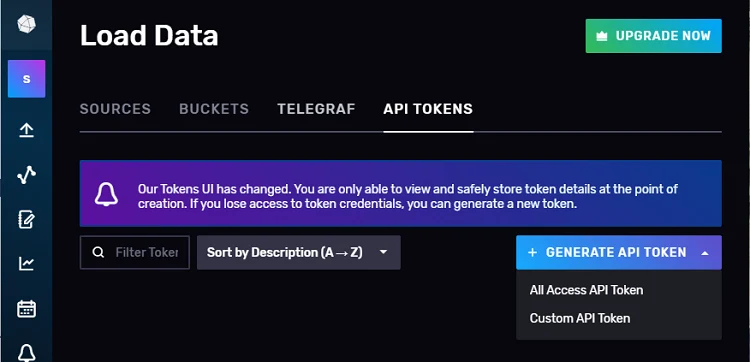
Describe the API Token (for example Raspberry-Pi).
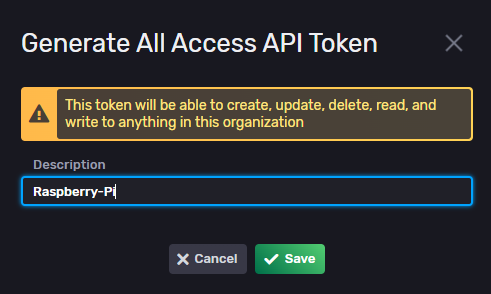
After that, copy the API token to a safe place. You won’t be able to see it again.

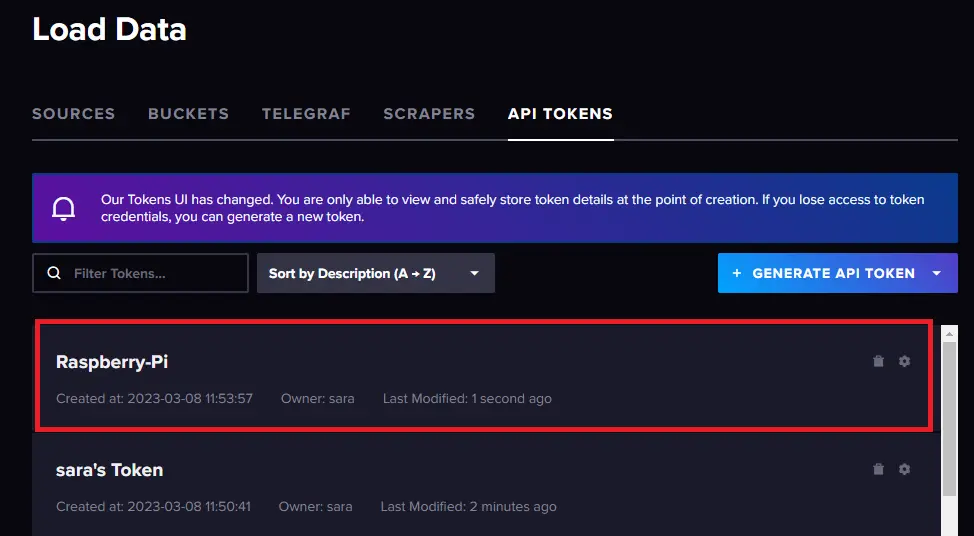
The new API Token should be on the list of API tokens.
Influx CLI is InfluxDB command line interface that contains commands to manage many aspects of InfluxDB, including buckets, organizations, users, tasks, etc. It should be automatically installed when you install InfluxDB.
To avoid having to pass your InfluxDB host, API token, and organization with each command, you can store them in an influx CLI configuration (config). For that, you need to use the influx config create command and pass your information.
First, edit the following command with your information:
influx config create --config-name influx-config \
  --host-url http://YOUR_RASPBERRY_PI_IP_ADDRESS:8086 \
  --org <your-org> \
  --token <your-auth-token> \
  --active
YOUR_RASPBERRY_PI_IP_ADDRESS with your Pi’s IP address.<your-org> with your InfluxDB organization name<your-auth-token> with the API token you got in the previous step.For example, in my case, the command looks as follows:
influx config create --config-name influx-config \
  --host-url http://192.168.1.106:8086 \
  --org RNT \
  --token v_od_mG--9_srf_OnaaODihPDX34suToP7XEH47v6x77CMxakZaoYHzF7Ec9mLT-CuXXXXXXXXXXXXXXXXXvQCSSw== \
  --active
Now, run the following command to apply the Raspberry Pi template.
influx apply -u https://raw.githubusercontent.com/influxdata/community-templates/master/raspberry-pi/raspberry-pi-system.yml
Run the following commands sequentially to install Telegraf:
wget -q https://repos.influxdata.com/influxdata-archive_compat.key
echo '393e8779c89ac8d958f81f942f9ad7fb82a25e133faddaf92e15b16e6ac9ce4c influxdata-archive_compat.key' | sha256sum -c && cat influxdata-archive_compat.key | gpg --dearmor | sudo tee /etc/apt/trusted.gpg.d/influxdata-archive_compat.gpg > /dev/null
echo 'deb [signed-by=/etc/apt/trusted.gpg.d/influxdata-archive_compat.gpg] https://repos.influxdata.com/debian stable main' | sudo tee /etc/apt/sources.list.d/influxdata.list
sudo apt-get update && sudo apt-get install telegraf
Are the instructions not working?
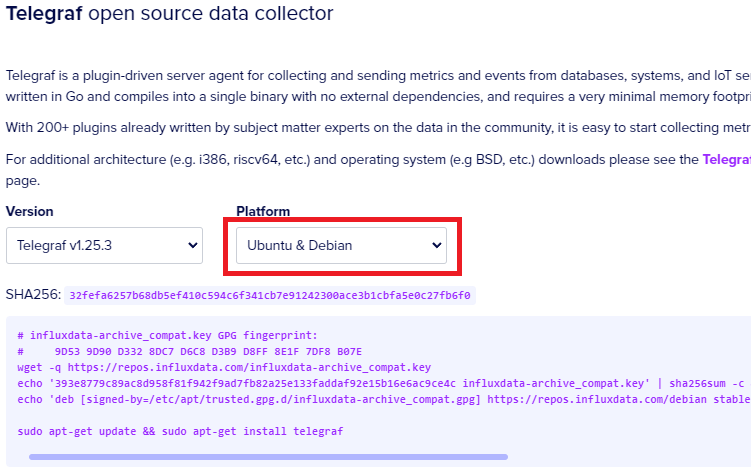
If the instructions are not working, it might be due to an update in the installation procedure. If that’s the case, we recommend that you go to the next link and follow the official instructions:
Scroll down to the Telegraf section. Select the platforms Ubuntu & Debian. Then, copy the commands provided.
Now, you need to add the following environment variables to your Telegraf environment:
INFLUX_HOST: InfluxDB URL http://YOUR_RASPBERRY_PI_IP_ADDRESS:8086INFLUX_TOKEN: Your InfluxDB Cloud API tokenINFLUX_ORG: Your InfluxDB Cloud organization name.For that, edit the following command with your own details:
export INFLUX_HOST=http://YOUR_RASPBERRY_PI_IP_ADDRESS:8086
export INFLUX_TOKEN=YOUR_API_TOKEN
export INFLUX_ORG=YOUR_ORG_NAME
For example, in my case, the command looks as follows:
export INFLUX_HOST=http://192.168.1.106:8086
export INFLUX_TOKEN=v_od_mG--9_srf_OnaaODihPDX34suToXXXXXXXXXXP7XEH47v6x
export INFLUX_ORG=RNT
Then, run it on your Raspberry Pi.
Start Telegraf as a service. For the exact command, you need to go to your InfluxDB interface, and then Data/Load Data > Telegraf. Click on the rpi Setup Instructions. Copy the command to start Telegraf.
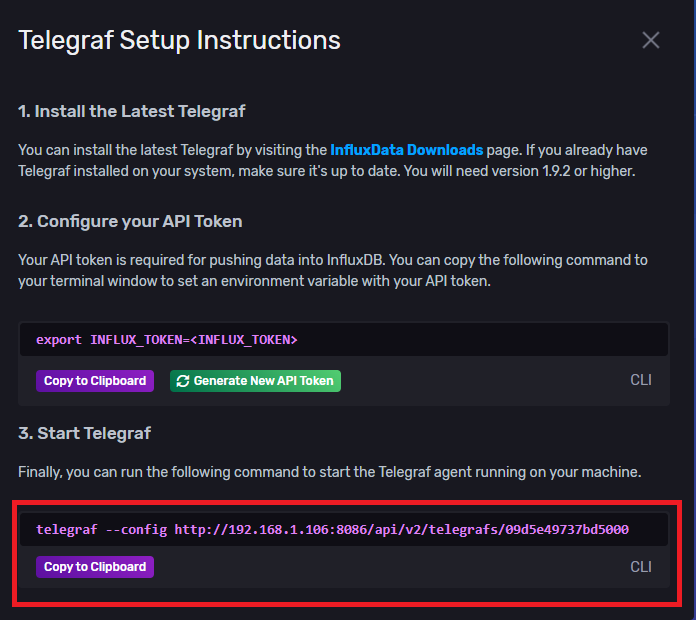
Run that command to start Telegraf. You should get something similar to the next image in your Terminal window.
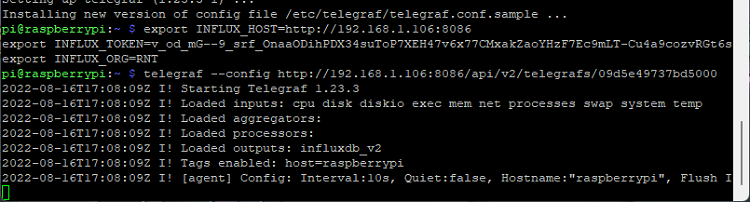
At the moment, Telegraf should be collecting data from the Raspberry Pi and sending it to the corresponding bucket on InfluxDB.
Now you can monitor your Raspberry Pi system on a Dashboard in InfluxDB. In your InfluxDB user interface, go to Boards/Dashboards (left sidebar) and click on the Raspberry Pi System “A collection of useful visualizations for monitoring your system stats”.
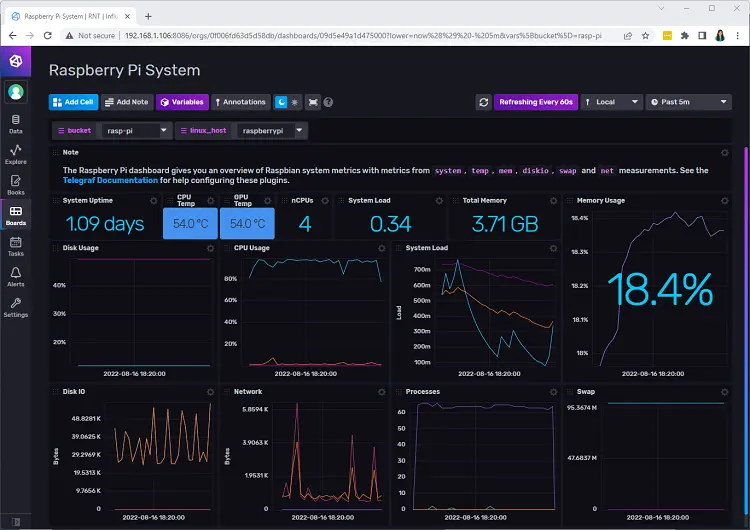
You’ll get access to the Raspberry Pi System Dashboard. You can check useful information like the CPU and GPU temperatures, total memory, memory usage, and much more.
If you don’t see any data on the dashboard, make sure you select the right bucket rasp-pi and the linux_host is raspberrypi.
Congratulations! You set up an InfluxDB Telegraf to monitor your Raspberry Pi system.
In this quick guide, we’ve shown you how to use InfluxDB Telegraf to collect useful data from your Raspberry Pi and display it on a dashboard. You can monitor CPU usage, memory usage, disk usage, system load, CPU and GPU temperatures, and other useful data.
Thanks for reading.








