Book Categories:


Wait, don't go!
Become a Member Today and Unlock Access to All eBooks!
Thousands of eBooks at your fingertips. Read, learn, and grow anytime, anywhere.

In this tutorial, you’ll learn how to get started with the Raspberry Pi by installing the operating system, setting up Wi-Fi, and enabling and connecting with SSH. You can configure everything without the need for an extra monitor, keyboard, or mouse—the Raspberry Pi will be running headless.
The Raspberry Pi is a computer, and like any other computer, it needs an Operating System (OS) installed.
The Pi doesn’t have built-in storage, so you’ll need a microSD card to install your OS. We’ll install the operating system on the microSD card. I recommend using a microSD card class 10 with at least 16GB of memory.

There are several operating systems suitable for the Pi. The official distribution for the Raspberry Pi is Raspberry Pi OS, and that’s the one we recommend you install.
1) Start by connecting the microSD card to your computer.
2) Go to the Raspberry Pi Software page.

3) Select and download the Raspberry Pi Imager (a tool to flash the OS on the microSD card) for your computer’s operating system.
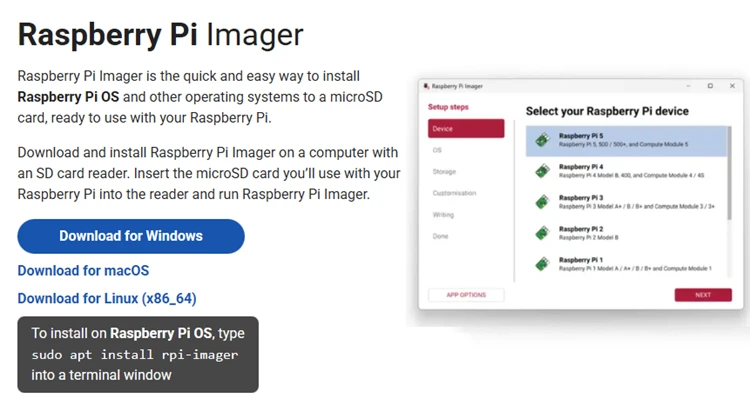
4) Click on the downloaded file to install the Raspberry Pi Imager.
5) When the installation is complete, the Raspberry Pi Imager will open.
6) Select the Raspberry Pi board you’re using.
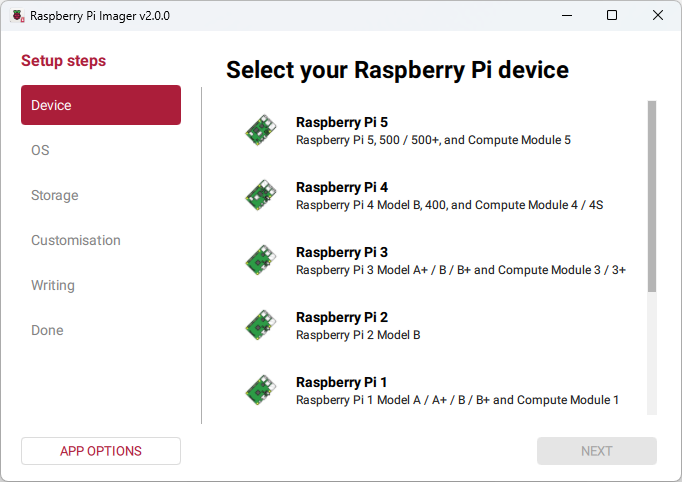
7) Then, select the Operating System. For beginners, and for most scenarios, we recommend the Raspberry Pi OS (64-bit).
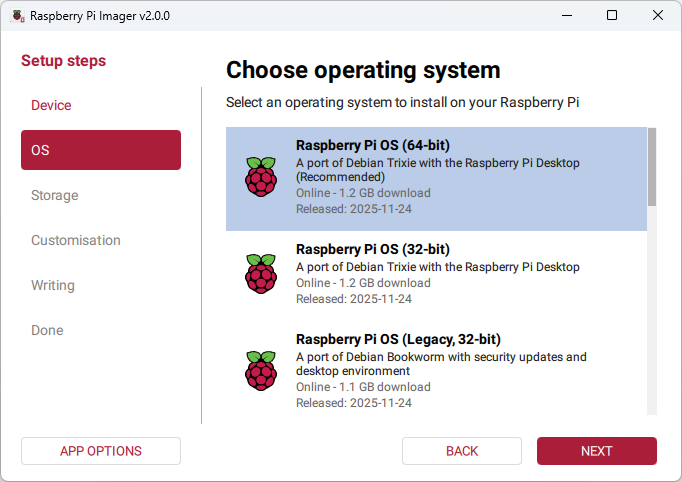
8) Choose the microSD card where you want to install the OS.
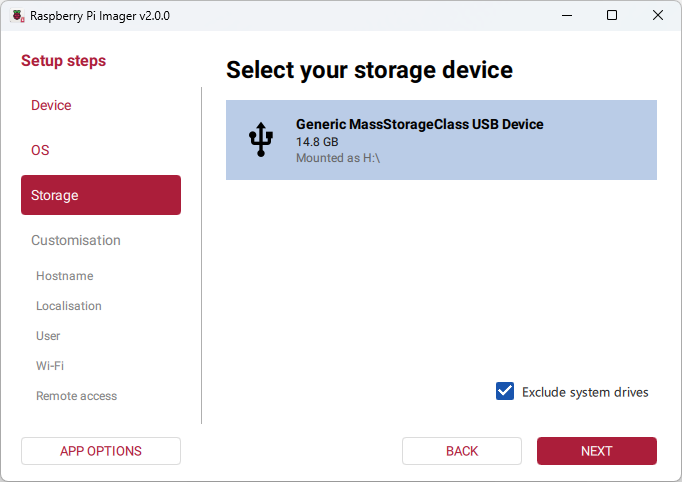
9) Next, choose a hostname for your board. It’s the name you’ll use to connect to your board via SSH later. We’re giving it the name raspberrypi5.
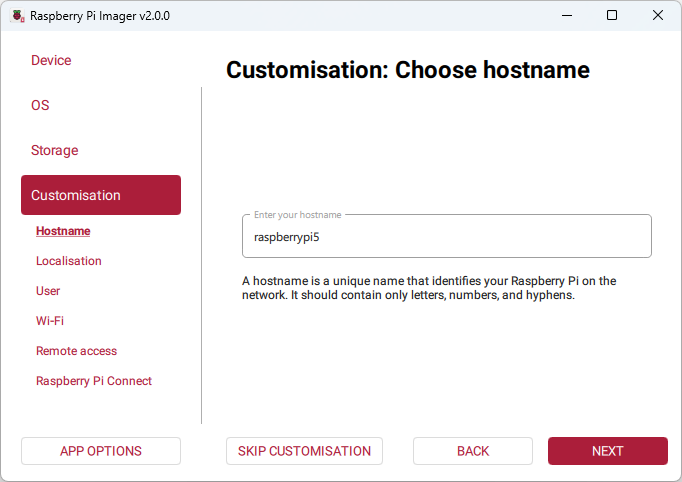
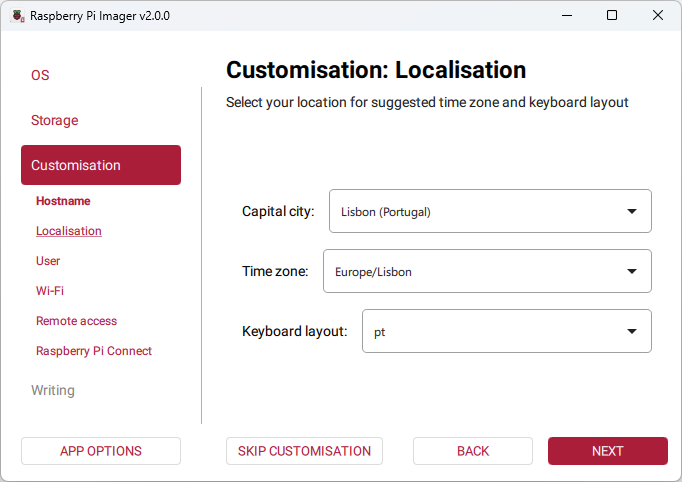
10) Set your location, time zone, and keyboard layout.
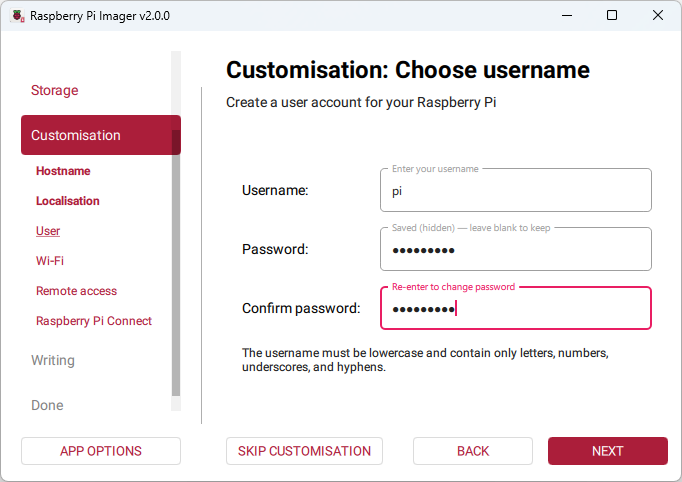
11) Then, you need to create a username and password to access your Raspberry Pi later on. Make sure you memorize or save this.
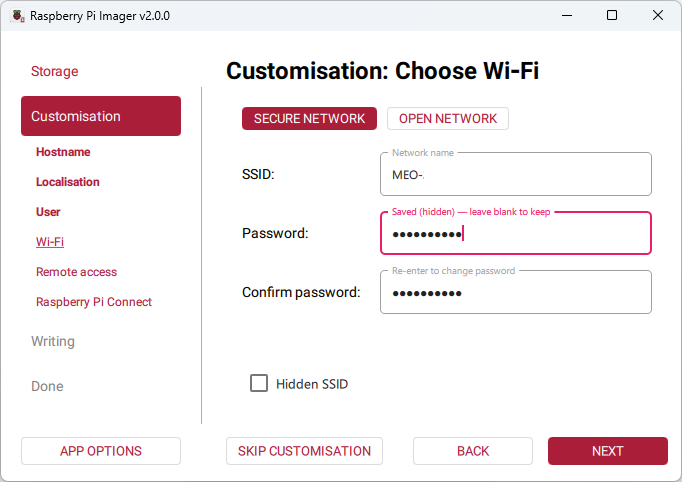
12) Set up Wi-Fi with your local network credentials. Don’t make any mistakes here. Otherwise, your Pi won’t be able to connect to your network, and you won’t be able to connect to the Pi via SSH.
13) Enable SSH with password authentication.
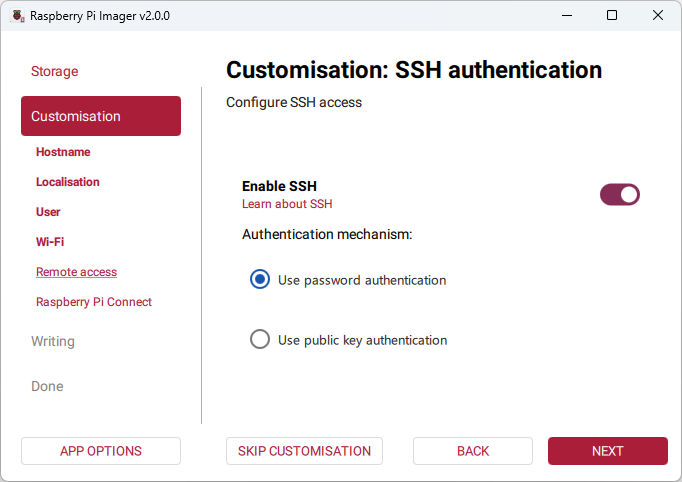
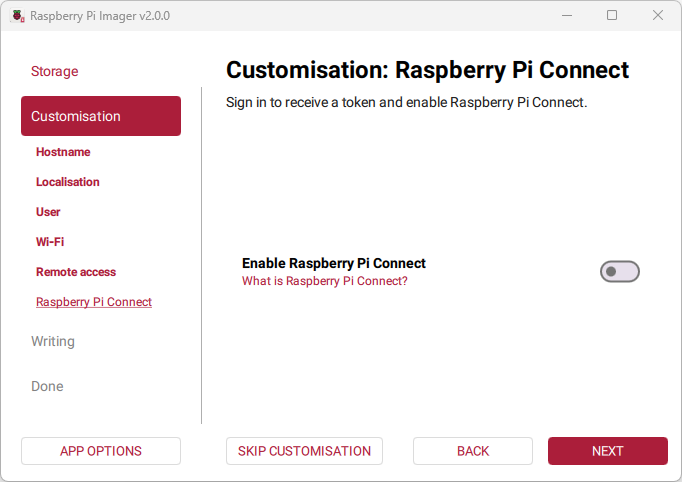
14) The following step is optional. You can set up Raspberry Pi Connect or not. For more information about Raspberry Pi Connect, click here.
15) Finally, click Next. You’ll be given an overview of your setup. Click Write to start the process.
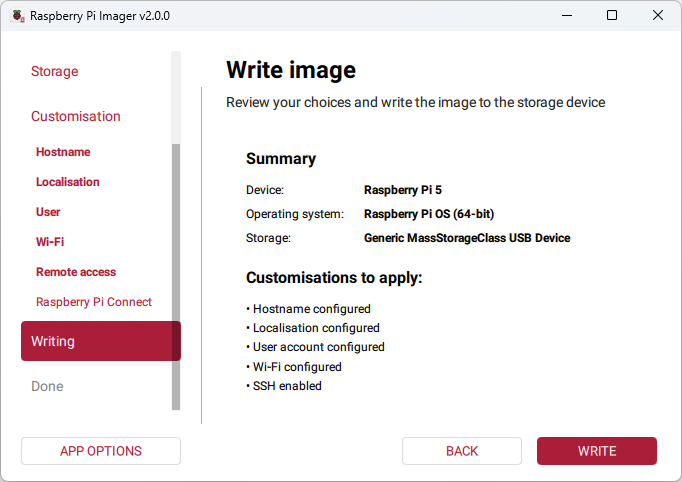
16) After a few minutes, the process will be completed.
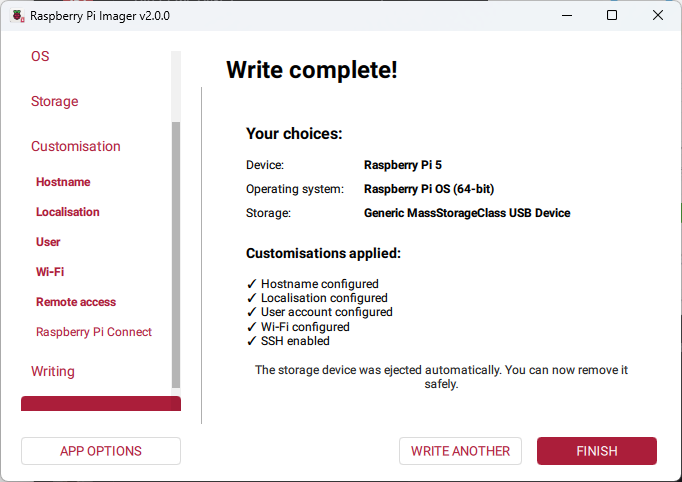
17) When the installation is complete. It will eject the microSD card safely.
18) Now, remove the card from your computer and insert it into your Pi. Then, apply power to the Raspberry Pi to start it and proceed to the next unit.
If you’ve already set up the network credentials in the previous instructions, you can skip this section.
This method is useful if you want to change the credentials after you already have a microSD card with the OS installed.
Insert the microSD card in your computer.
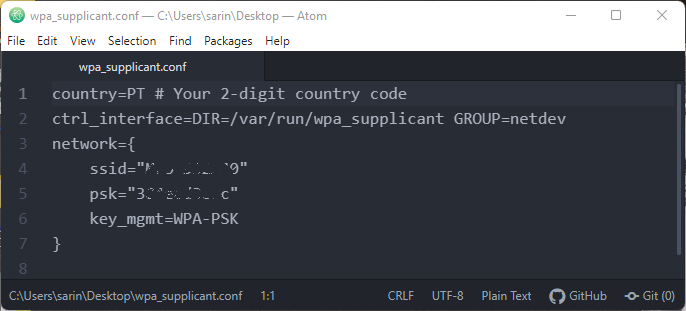
1) Create a new file called wpa_supplicant.conf and paste the following.
country=PT # Your 2-digit country code
ctrl_interface=DIR=/var/run/wpa_supplicant GROUP=netdev
network={
    ssid="YOUR_NETWORK_NAME"
    psk="YOUR_PASSWORD"
    key_mgmt=WPA-PSK
}
Insert your 2-digit country code and the network credentials (SSID and password) of the network that you want the Raspberry Pi to connect to.
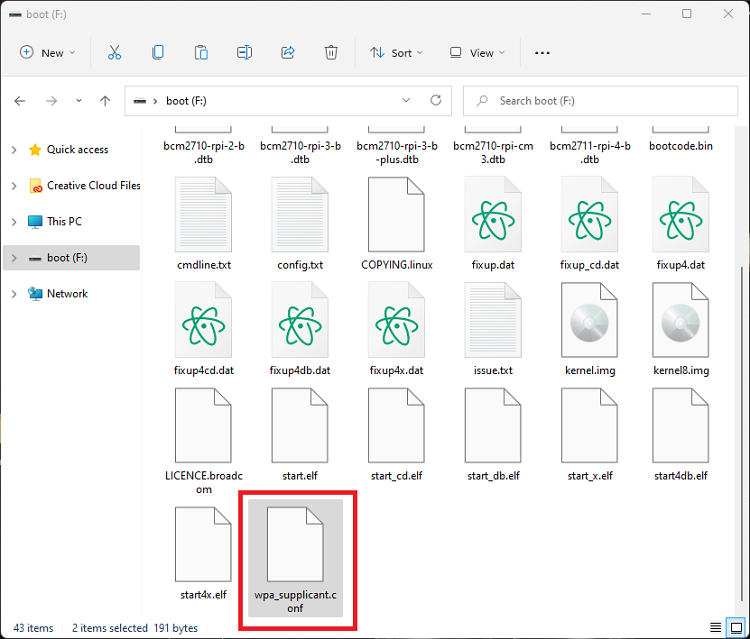
2) Open the microSD card folder and move the wpa_supplicant.conf file there.
If you’ve already enabled SSH in the previous instructions, you can skip this section.
To access your Raspberry Pi remotely (via a computer on your local network) so you don’t need to connect a monitor, keyboard, or mouse to the Raspberry Pi, you need to enable SSH. SSH allows you to connect to your Raspberry Pi remotely from another machine and access the command line.
To enable SSH, you need to create a file called ssh (without any extensions) in the boot folder of the microSD card.
1) You can click here to download the ssh file.
2) Move that file to the boot folder of the microSD card.
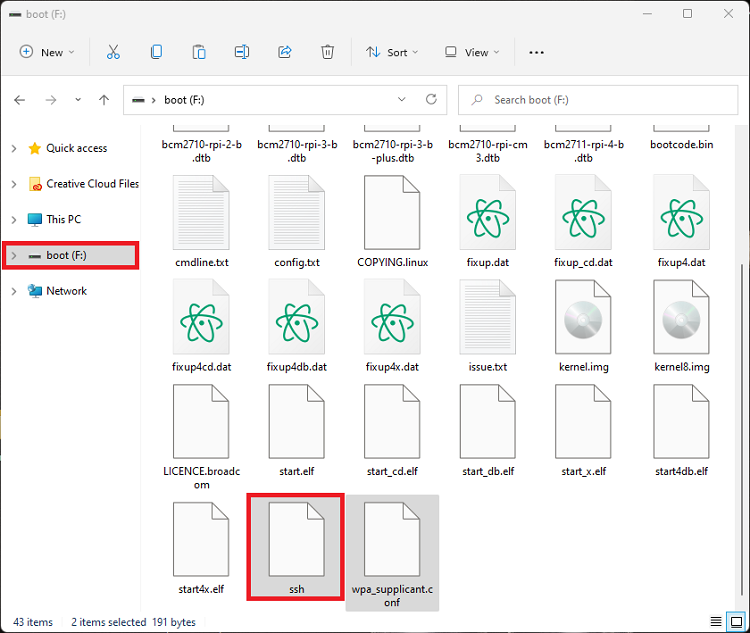
When the Raspberry Pi starts up, the OS will find the ssh file and will automatically activate SSH.
Now, safely eject the microSD card from your computer and insert it into the Raspberry Pi. Then, power up the Pi using a 5V DC power source.
SSH (which stands for secure shell) is a method of establishing a secure connection with another computer. All data sent via SSH is encrypted. SSH is based on a Unix shell, so it allows you to access your Raspberry Pi files from a remote machine by using terminal commands.
This part is divided into two sections:
To communicate with the Raspberry Pi via SSH, you need software to handle SSH communication. We’ll use PuTTY. You need to install it on your computer if you haven’t already.
If you use Windows, you need to download and install a free application called PuTTY. Here’s how to install it:
1) Open your web browser and go to www.putty.org
2) Download PuTTY. We recommend downloading the putty.exe file.
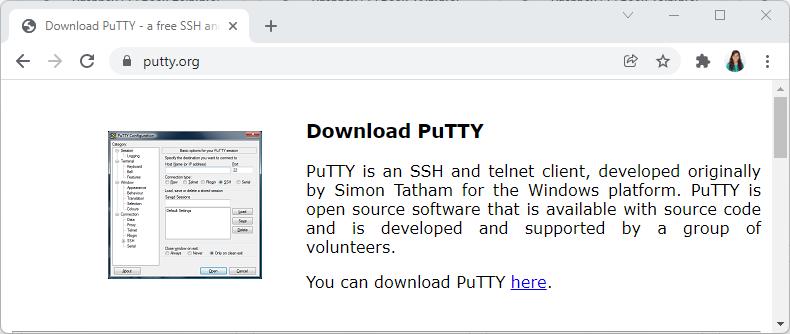
3) Run the putty.exe file to execute the software.
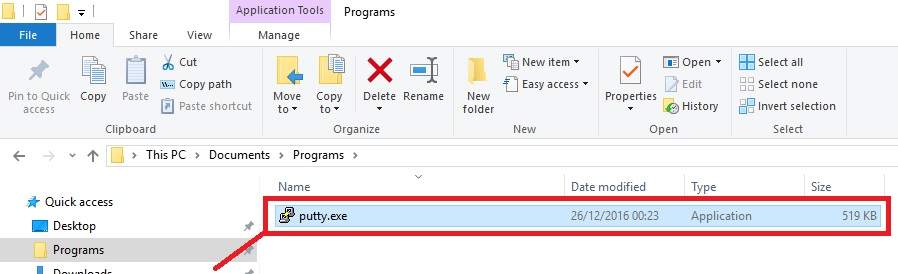
With PuTTY installed, power up your Raspberry Pi and follow the next steps (wait at least five minutes before connecting if this is the first time the Raspberry Pi is booting up to give some time to load the operating system):
1) Open PuTTY.
2) Select/enter the following options:
* raspberrypi is the default hostname. If you’ve inserted a different hostname in the installation process, you should use that instead.
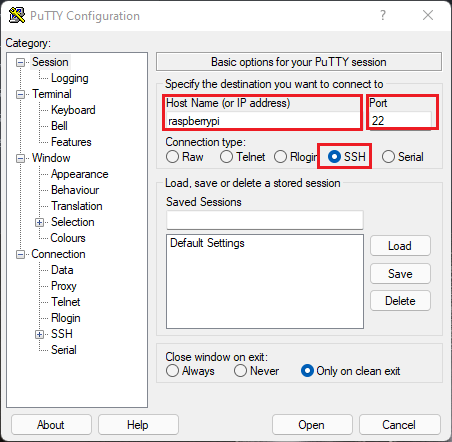
3) Click Open.
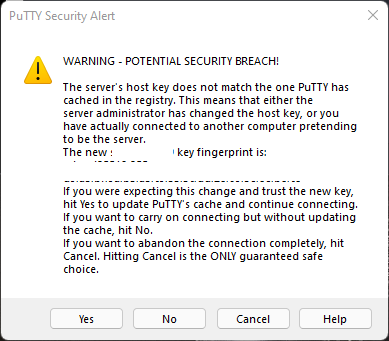
4) When you connect to your Raspberry Pi for the first time, you’re prompted by a message warning you that you’re attempting to establish a connection with an unknown host. Simply click No to proceed.
5) Now, you need to login to your Raspberry Pi using the username and password you set on the installation process.
If PuTTY warns that the hostname doesn’t exist, you might need to restart your router so that it assigns an IP address to your Raspberry Pi.
On the new window that opens, type your username and hit Enter.
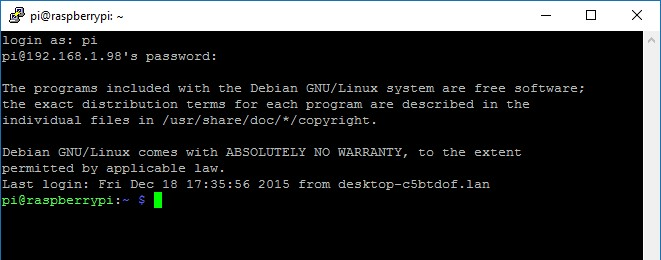
6) Then, enter your password and hit Enter. You won’t see any characters showing up on the window while you type the password.
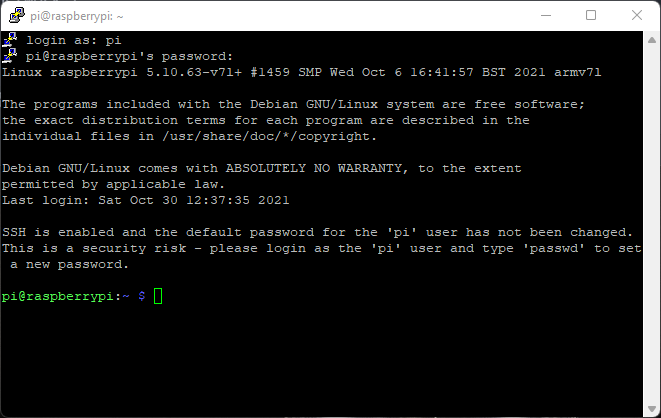
Now you have an SSH connection established with your Raspberry Pi. This will be useful to install software on your Pi, run your programs, create folders or files, etc…
I recommend reading my Raspberry Pi Cheat Sheet with Basic Linux Commands.
To shut down your Raspberry Pi, simply type this command on the command line:
pi@raspberry:~ $ sudo poweroff
The SSH connection will be shut down right after.
SSH (which stands for secure shell) is a method of establishing a secure connection with another computer. All data sent via SSH is encrypted.
SSH is based on a Unix shell, so it allows you to access your Raspberry Pi files from a remote machine by using terminal commands. It has grown to be one of the most popular methods for communication between different devices.
In Mac OS X and Linux, you can use the default Terminal window to establish an SSH connection, because SSH comes in all Unix-based OSes. Follow these steps:
1) Boot up your Raspberry Pi.
2) Open a new Terminal window.
3) Type the following command:
$ sudo ssh pi@raspberrypi
or:
$ sudo ssh pi@raspberrypi.local
Note: if you defined a different hostname and username rather than raspberrypi and pi, you should use those instead.
4) Enter your computer password (so you can run a sudo command), and type yes.
5) When you’re asked to type a password for your Raspberry Pi, type the password you’ve set previously, and press Enter/Return.
When you connect your computer to your Raspberry Pi for the first time, you’re prompted by a message warning you that you’re attempting to establish a connection with an unknown host. Simply click OK to proceed
Your Terminal window should look like the Figure below:
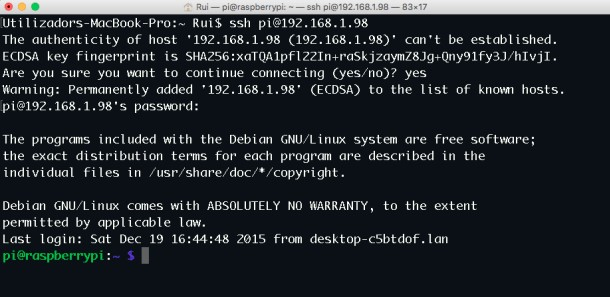
Now you have an SSH communication established with your Raspberry Pi. This will be useful to install software on your Pi, run your programs, create folders or files, etc…
I recommend reading my Raspberry Pi Cheat Sheet with Basic Linux Commands.
To shut down your Raspberry Pi, simply type this command on the command line:
pi@raspberry:~ $ sudo poweroff
In this tutorial, you’ve set up your Raspberry Pi to run headless. You’ve installed the Raspberry Pi OS, set up Wi-Fi, and enabled SSH so that you can access the Raspberry Pi command line from another machine on the same network. Finally, you established an SSH connection with the Raspberry Pi.
I hope this guide was useful. You’re now able to easily connect via SSH to your Raspberry Pi and send Linux commands (read Learning Basic Linux Commands – Raspberry Pi Cheat Sheet).








