Book Categories:


Wait, don't go!
Become a Member Today and Unlock Access to All eBooks!
Thousands of eBooks at your fingertips. Read, learn, and grow anytime, anywhere.
Become a Member Today and Unlock Access to All eBooks!
Thousands of eBooks at your fingertips. Read, learn, and grow anytime, anywhere.
This guide shows how to set up a Remote Desktop Connection with a Raspberry Pi using RDP on a Windows PC. The Remote Desktop Protocol (RDP) is the proprietary network protocol developed by Microsoft to connect to a remote desktop computer and access its graphical user interface. This allows you to connect your Windows PC to your Raspberry Pi and control its GUI remotely.
We have a similar guide for Mac OS computer: Raspberry Pi: Set Up Remote Desktop Connection (RDP)
Before proceeding, make sure you check the following prerequisites.
xrdp provides a graphical login to remote machines using RDP (Microsoft’s proprietary Remote Desktop Protocol). xrdp accepts connections from a variety of RDP clients. We’ll be using Microsoft Remote Desktop Client for Windows (but it’s also compatible with Mac OS, iOS, and Android).
xrdp allows you to connect to your Raspberry Pi to control its desktop remotely.
Please note that your Raspberry Pi must be running a full Raspberry Pi OS – it will not work with a headless or Lite OS.
Top 6
Raspberry Pi eBooks
From Zero to Professional

Having an SSH connection established with your Raspberry Pi, update and upgrade your Raspberry Pi, if any updates are available. Run the following command:
sudo apt update && sudo apt upgrade -yNext, we need to install the Xrdp software on your Raspberry Pi:
sudo apt install -y xrdpThat’s it. You don’t need to change any configurations; everything will work out of the box with the default settings.
Finally, run the following command to get the Raspberry Pi IP address. You’ll need the IP address to establish the remote connection.
hostname -I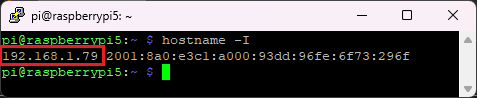
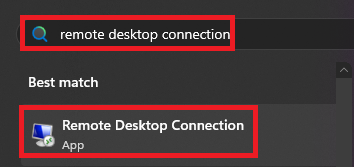
The Remote Desktop Connection software is installed on all Windows PCs by default. Click the search bar.

Search for “Remote Desktop Connection” and open the App:
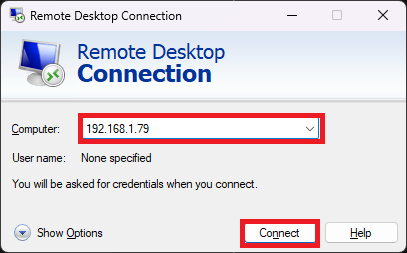
Type the Raspberry Pi IP address in the computer field and press the Connect button:
Click the “Yes” button to establish the connection.
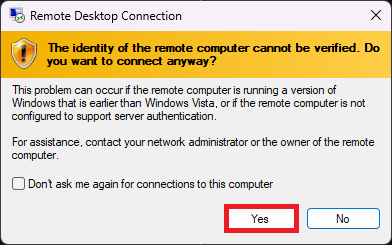
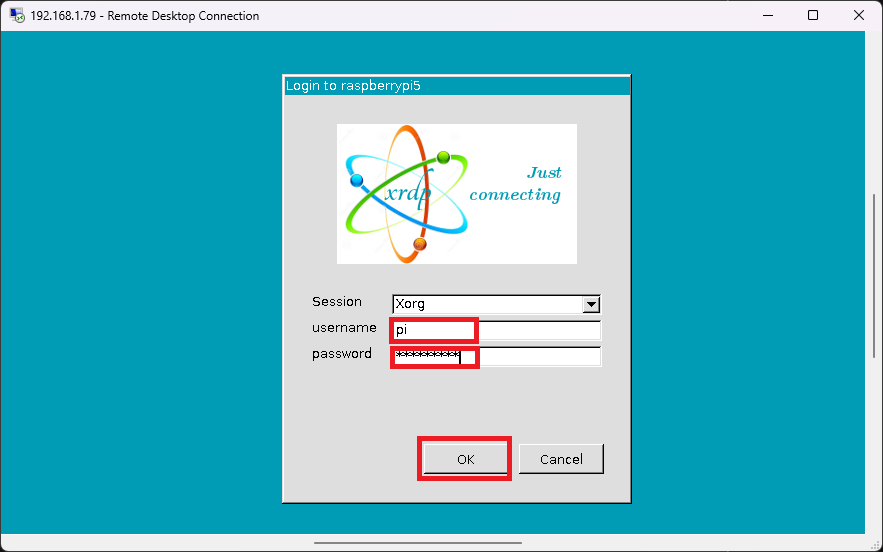
Next, type your Raspberry Pi username and password and click the “OK” button to login to your device.
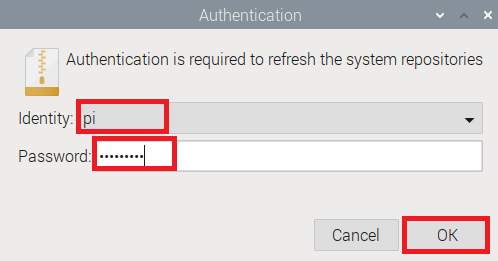
You might be prompted one more time for the authentication if you just powered on your Raspberry Pi, so enter your username and password.
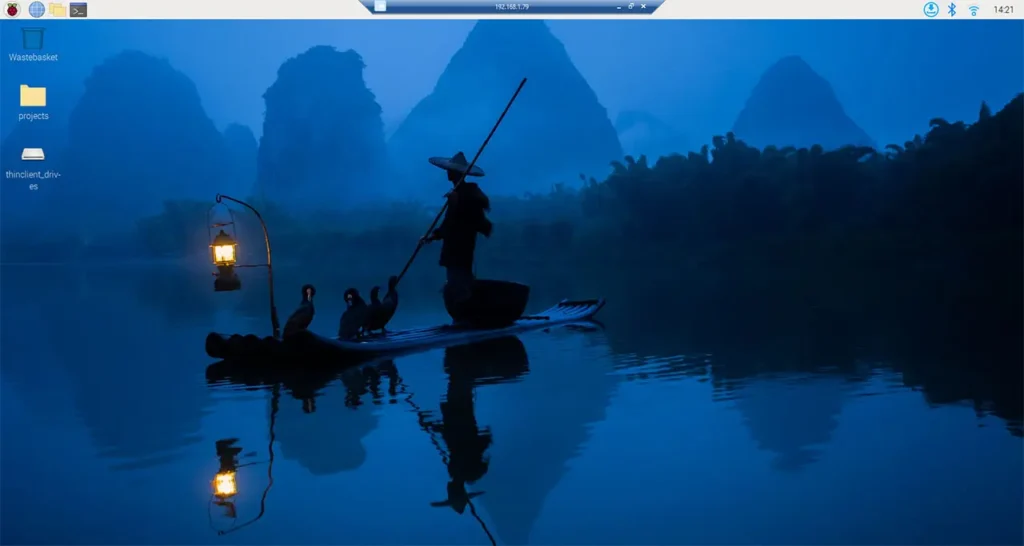
That’s it! You can now control your Raspberry Pi desktop computer remotely from a Windows PC.
In this tutorial, you learned a very convenient, practical, and easy way to establish a remote connection with your Raspberry Pi using xrdp. This is our favorite method to access the Raspberry Pi desktop because you don’t have to connect an additional screen, keyboard, and mouse. You can also use RDP on a Mac OS computer.
We hope you found this tutorial useful. You can check all our Raspberry Pi projects on the following link:
Thanks for reading.
🚀 Discover the world of electronics and innovation!
✨ Create, program, and experiment with all your creative ideas with ease.
🔥 Don't wait! Browse SpotPear products now and start your amazing project!








