Book Categories:


Wait, don't go!
Become a Member Today and Unlock Access to All eBooks!
Thousands of eBooks at your fingertips. Read, learn, and grow anytime, anywhere.
Become a Member Today and Unlock Access to All eBooks!
Thousands of eBooks at your fingertips. Read, learn, and grow anytime, anywhere.
In this guide, you’ll learn how to transfer files remotely from your computer to a Raspberry Pi and vice-versa. We’ll be using FileZilla FTP (File Transfer Protocol) Client to establish a remote connection over the internet to transfer files between your Mac OS computer and a Raspberry Pi.
We have a similar guide for Windows PC: Transfer Files to and from Raspberry Pi using FileZilla FTP
Before proceeding, make sure you check the following prerequisites.
The FileZilla Client is an open-source, cross-platform software that supports FTP, FTPS, and SFTP. It can be installed on Mac OS/Linux computers or Windows PC. In this guide, we’ll show you how to install FileZilla on a Mac OS computer.
Let’s download the software and install it. Go to the official website and download it by clicking the “Download FileZilla Client” button.
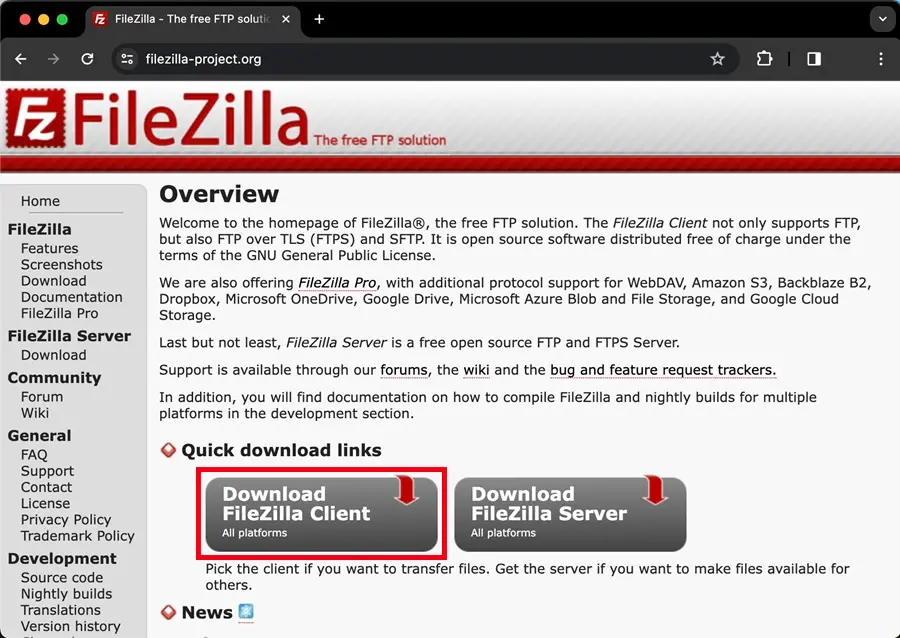
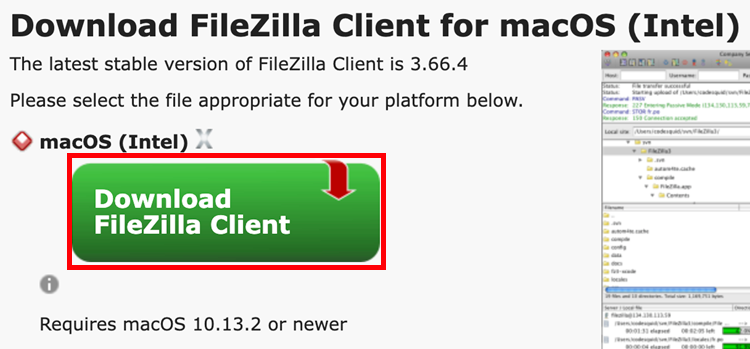
Even though it says it’s for Mac OS computers with Intel chips, it also runs completely fine on computers with M1/M2 chips. I’ve tested it myself.
Top 6
Raspberry Pi eBooks
From Zero to Professional

Choose the Free version on the left option highlighted below; it has all the features needed.
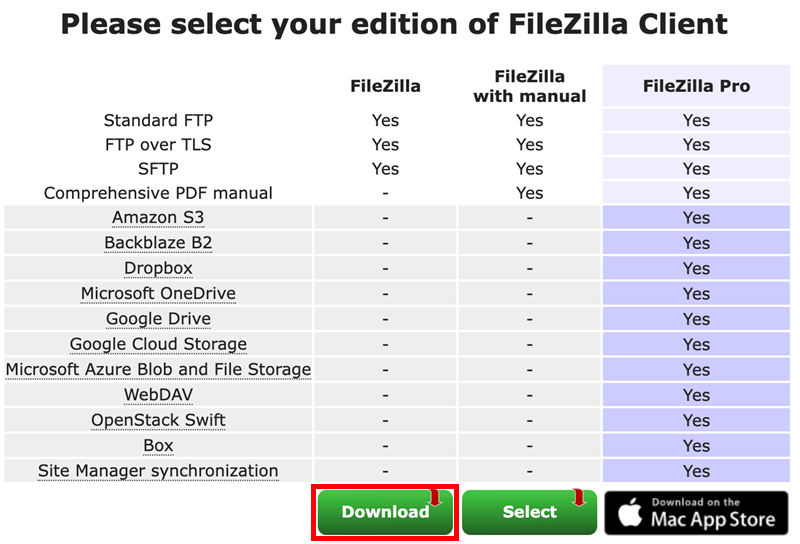
Once the FileZilla Client installation file has been downloaded, open it and complete the installation steps.

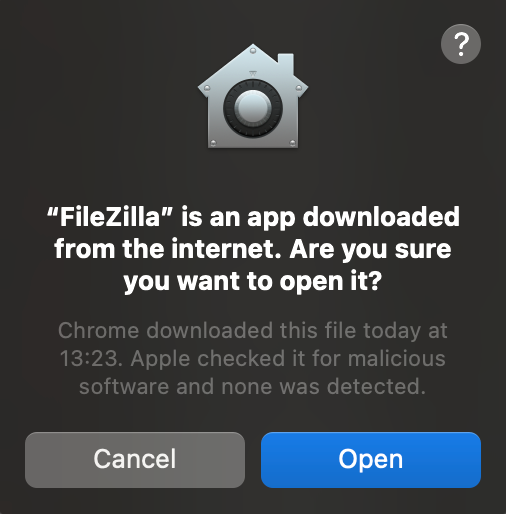
Click the “Open” button.
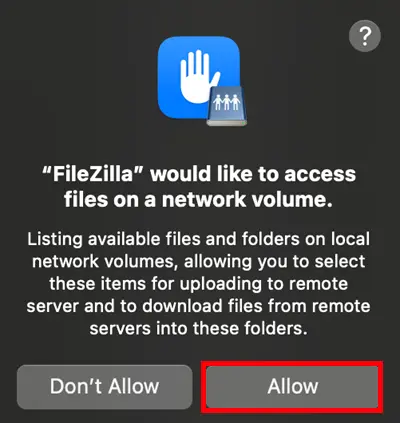
And allow FileZilla to upload and download files from remote computers.
Finally, after installing the FileZilla software, open it.

Having an SSH connection established with your Raspberry Pi, run the following command to get the Raspberry Pi IP address:
hostname -I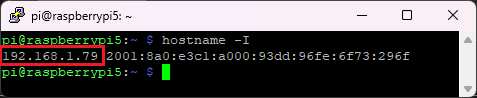
Save your Raspberry IP Address, because you’ll need it in the next step to establish the FTP connection.
Now it’s time to establish an FTP connection with your Raspberry Pi. In the FileZilla top bar, enter your Raspberry Pi details:
Once you’ve entered the required configuration settings, press the “Quickconnect” button.

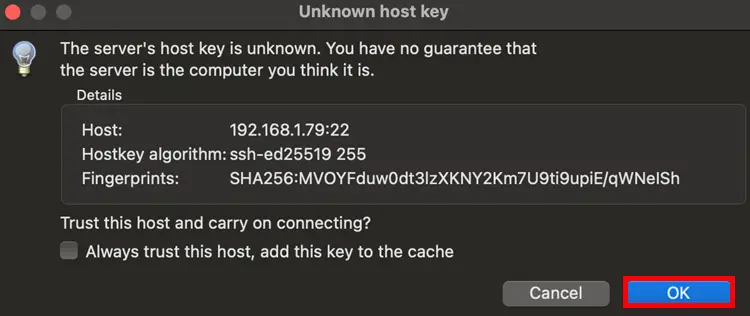
You can either save the Raspberry Pi username and password or just click the OK button.
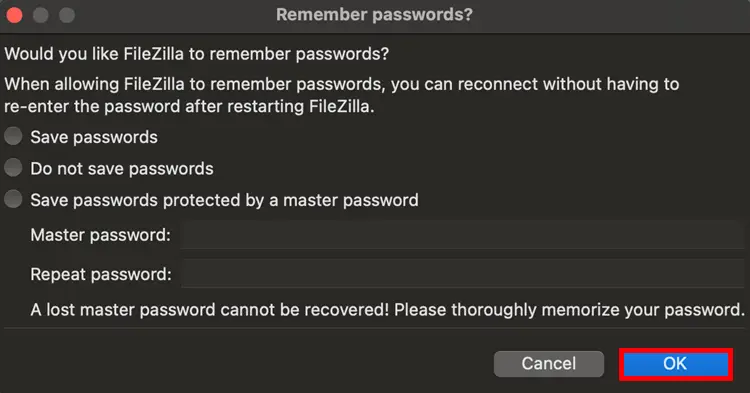
Then, click the OK button, and the connection should be established instantly.
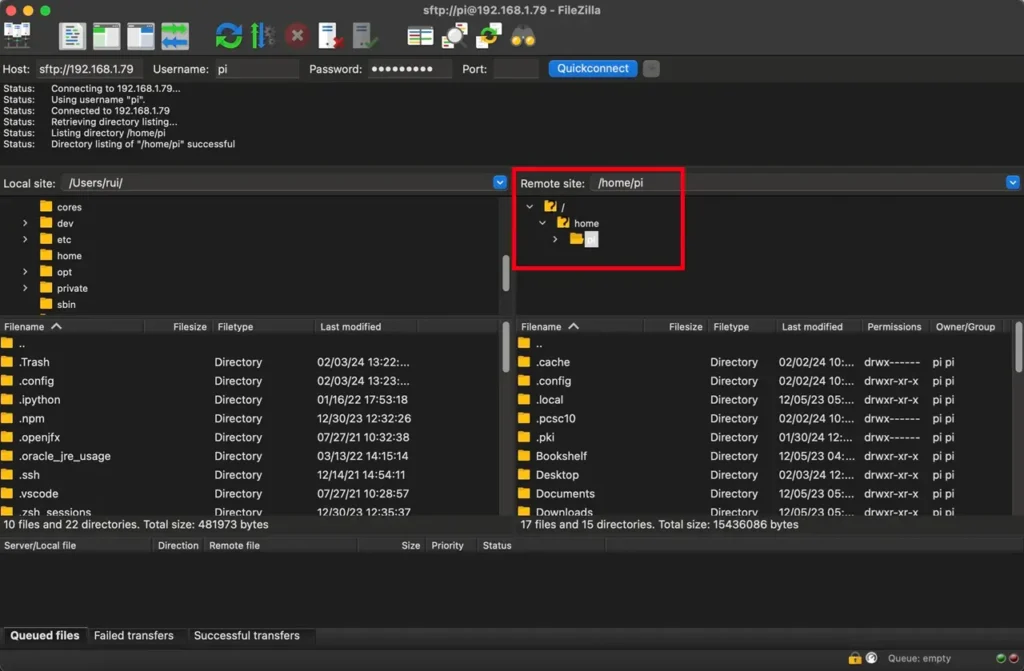
Once the FTP connection is established, the “Remote site” window (highlighted in the picture below) allows you to browse your Raspberry Pi directories and access all its files.
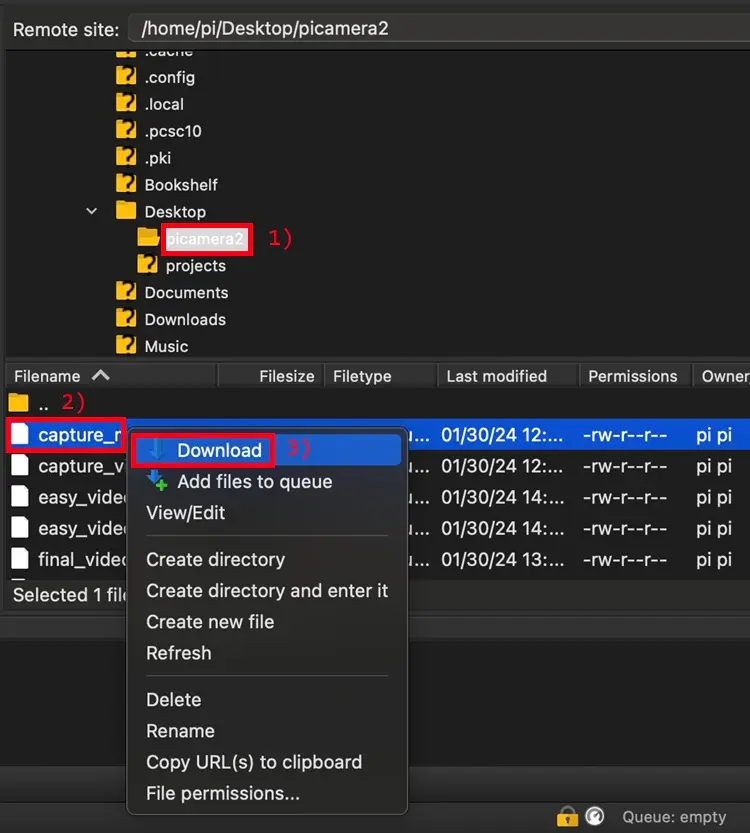
You can quickly download any files or folders from your Raspberry Pi.
You can also edit the file, create a new directory, create new files, delete files, rename files, and much more.
Once the file has been downloaded, open the “Successful transfers” tab (at the bottom left corner) to find the location where the file was saved on your computer.

You can also transfer/upload any files or folders from your Mac OS computer to the Raspberry Pi.
Find the file or folder that you want to transfer to your Raspberry Pi and drag it to the “Remote site” window on FileZilla to the desired folder location.
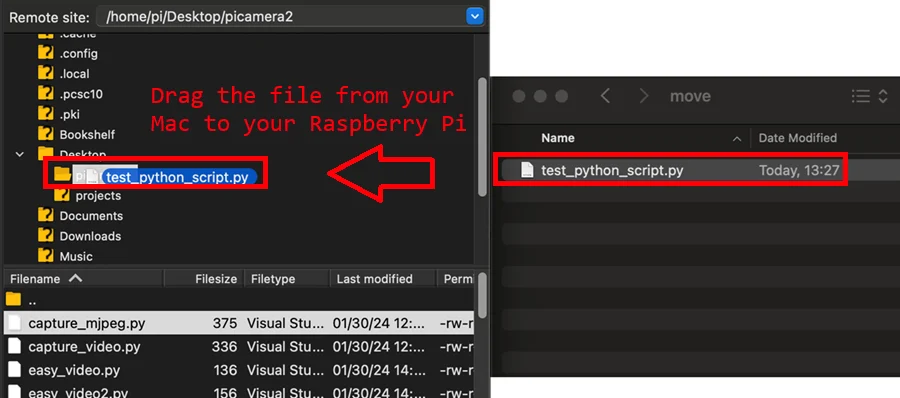
Once the file has been uploaded to your RPi, in the bottom left corner, you can open the “Successful transfers” to see if the process has been completed.

When using a Raspberry Pi, sometimes you want to transfer files to the Raspberry Pi or download existing files remotely. Having FileZilla installed makes it very easy to accomplish this task.
We have other practical Raspberry Pi tutorials that you may find useful:
You can find all our Raspberry Pi Projects on the following link:
🚀 Discover the world of electronics and innovation!
✨ Create, program, and experiment with all your creative ideas with ease.
🔥 Don't wait! Browse SpotPear products now and start your amazing project!








