Book Categories:


Wait, don't go!
Become a Member Today and Unlock Access to All eBooks!
Thousands of eBooks at your fingertips. Read, learn, and grow anytime, anywhere.
Become a Member Today and Unlock Access to All eBooks!
Thousands of eBooks at your fingertips. Read, learn, and grow anytime, anywhere.
This guide shows how to set up a USB camera for your OpenCV projects with a Raspberry Pi. OpenCV can be used with the Raspberry Pi camera and with regular USB cameras (also known as webcams). In all our OpenCV projects, we will be using a USB camera.
Before proceeding, make sure you check all the following prerequisites:
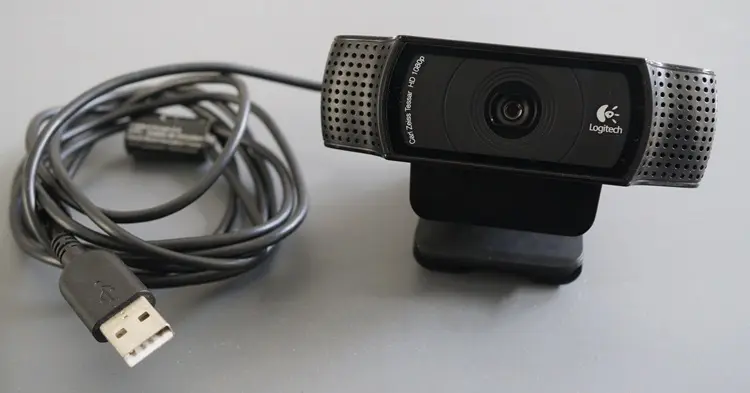
In our OpenCV projects, we will be using the Raspberry Pi with a standard USB camera, such as the one shown in the picture below.
Here are a few advantages and disadvantages of using a USB camera:
In summary, the best choice for you will depend on your project requirements. In this guide, we’ll show you how to set up OpenCV with a USB camera.
Top 6
Raspberry Pi eBooks
From Zero to Professional

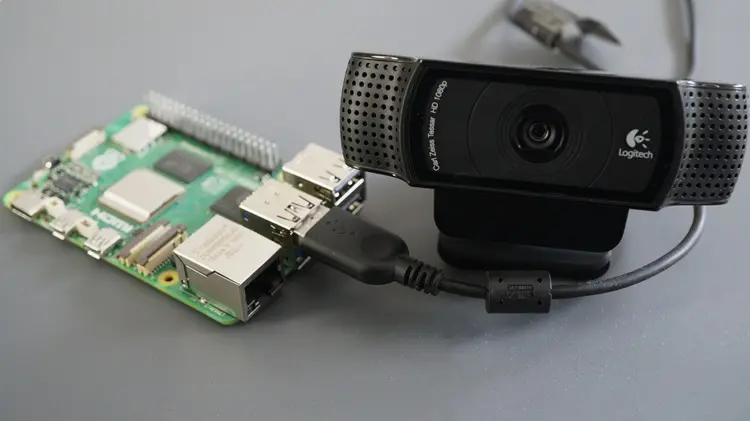
Connect your camera to the Raspberry Pi USB port before proceeding.
On a Terminal window on your Raspberry Pi, run the next command to list all video devices:
v4l2-ctl --list-devicesIn our case, we are using an HD Pro Webcam C920 by Logitech, and we’ve highlighted it in the screenshot below.
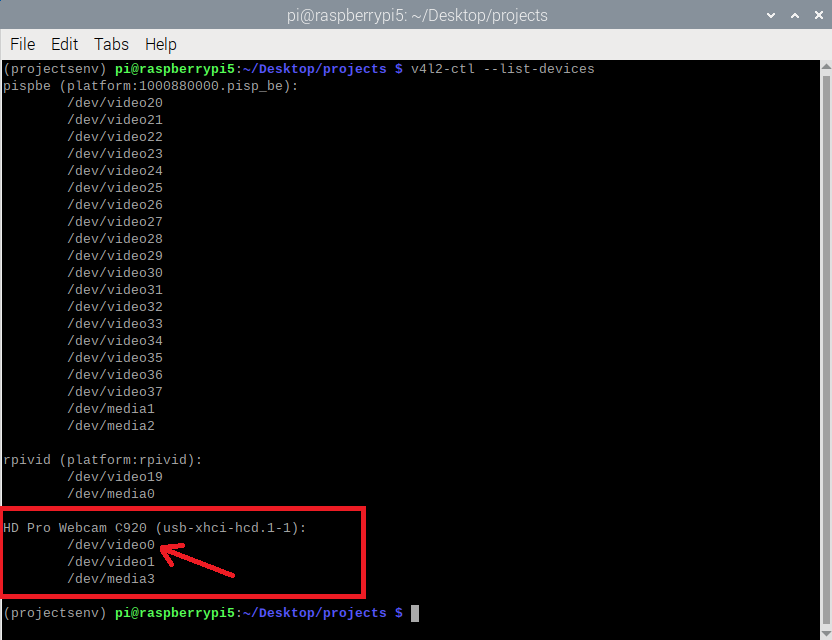
Even though it lists three video devices, usually the USB camera ID is the one on the first line. In our case:
/dev/video0This means that for our OpenCV projects, the camera ID is 0; yours might be different.
We’ve created a simple OpenCV Python script to test if your USB camera is compatible with the Raspberry Pi and can be used in future projects.
Start by creating a new file called opencv_test_usb_camera.py, and run the following command:
nano opencv_test_usb_camera.pyCopy the code to your newly created file:
# Ebokify
# Complete project details at https://ebokify.com/set-up-usb-camera-opencv-raspberry-pi/

import cv2

video_capture = cv2.VideoCapture(0)

while True:
    result, video_frame = video_capture.read()  # read frames from the video
    if result is False:
        break  # terminate the loop if the frame is not read successfully

    cv2.imshow(
        "USB Camera Test", video_frame
    )

    if cv2.waitKey(1) & 0xFF == ord("q"):
        break

video_capture.release()
cv2.destroyAllWindows()
You need to change the id of the VideoCapture(id) to the one you’ve found in the previous section. In our case, the camera id is 0 and it looks as follows:
video_capture = cv2.VideoCapture(0)Once you’ve made all the changes, press Ctrl+X to save your file, type Y, and Enter.
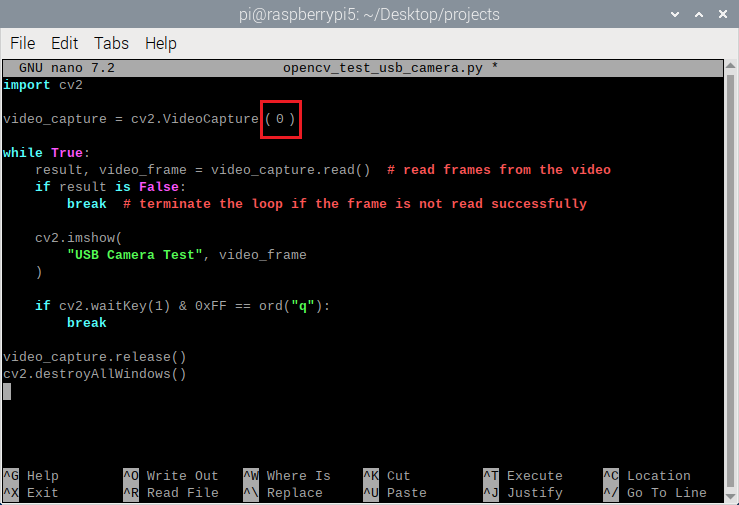
Let’s take a quick look at how the code works. Start by importing the OpenCV library.
import cv2Create a cv2.VideoCapture(0) object with your USB camera ID called video_capture.
video_capture = cv2.VideoCapture(0)Create a loop that keeps capturing new frames from the USB camera and displays them in the preview window. You can also stop the script at any time by pressing the q key on your keyboard.
while True:
    result, video_frame = video_capture.read()  # read frames from the video
    if result is False:
        break  # terminate the loop if the frame is not read successfully

    cv2.imshow(
        "USB Camera Test", video_frame
    )

    if cv2.waitKey(1) & 0xFF == ord("q"):
        break
When you stop the Python script, it will stop the USB camera and close all the preview windows.
video_capture.release()
cv2.destroyAllWindows()
With your OpenCV Python environment activated, in our case:
source projectsenv/bin/activateStart your script by running the following command:
python opencv_test_usb_camera.py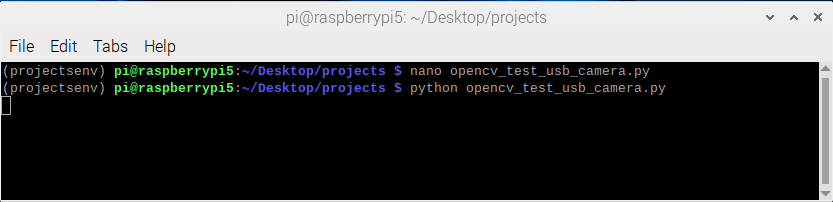
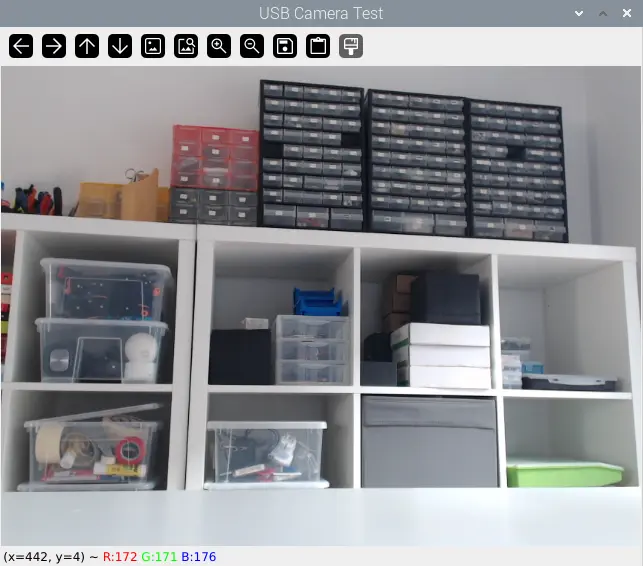
A preview window opens, and the webcam will be streaming on your Raspberry Pi desktop.
It might be a bit tricky to set up your USB camera, so we’ve compiled a list of 3 common issues that you might encounter and how to fix them.
If your camera fails to start, you might be using the wrong camera ID. You can try the second listed /dev/video option, in our case 1.
/dev/video1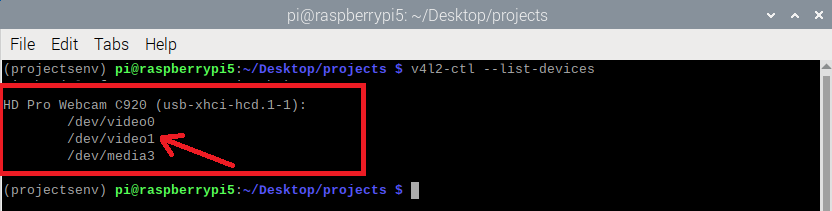
Then, pass 1 as the camera id in the video capture initialization and run the script again.
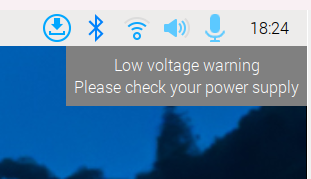
video_capture = cv2.VideoCapture(1)If you see the following message, “Low voltage warning” at the top right corner of your Raspberry Pi Desktop, you might be using a power adapter that doesn’t provide enough power for the USB camera to run properly. Try to use a new power adapter that can provide enough power for your Raspberry Pi and camera.
As we’ve mentioned earlier, some USB cameras might not be compatible with the Raspberry Pi OS due to driver incompatibilities. That’s why we recommend using a webcam from a well-known brand like Logitech to prevent driver issues.
In this quick guide, you learned how to set up a USB camera for your OpenCV projects with the Raspberry Pi. This will be useful for future OpenCV projects like face recognition, object detection, gesture detection, and more.
We hope you’ve found this tutorial useful. You can check all our Raspberry Pi projects on the following link:
🚀 Discover the world of electronics and innovation!
✨ Create, program, and experiment with all your creative ideas with ease.
🔥 Don't wait! Browse SpotPear products now and start your amazing project!








