Book Categories:


Wait, don't go!
Become a Member Today and Unlock Access to All eBooks!
Thousands of eBooks at your fingertips. Read, learn, and grow anytime, anywhere.
Become a Member Today and Unlock Access to All eBooks!
Thousands of eBooks at your fingertips. Read, learn, and grow anytime, anywhere.
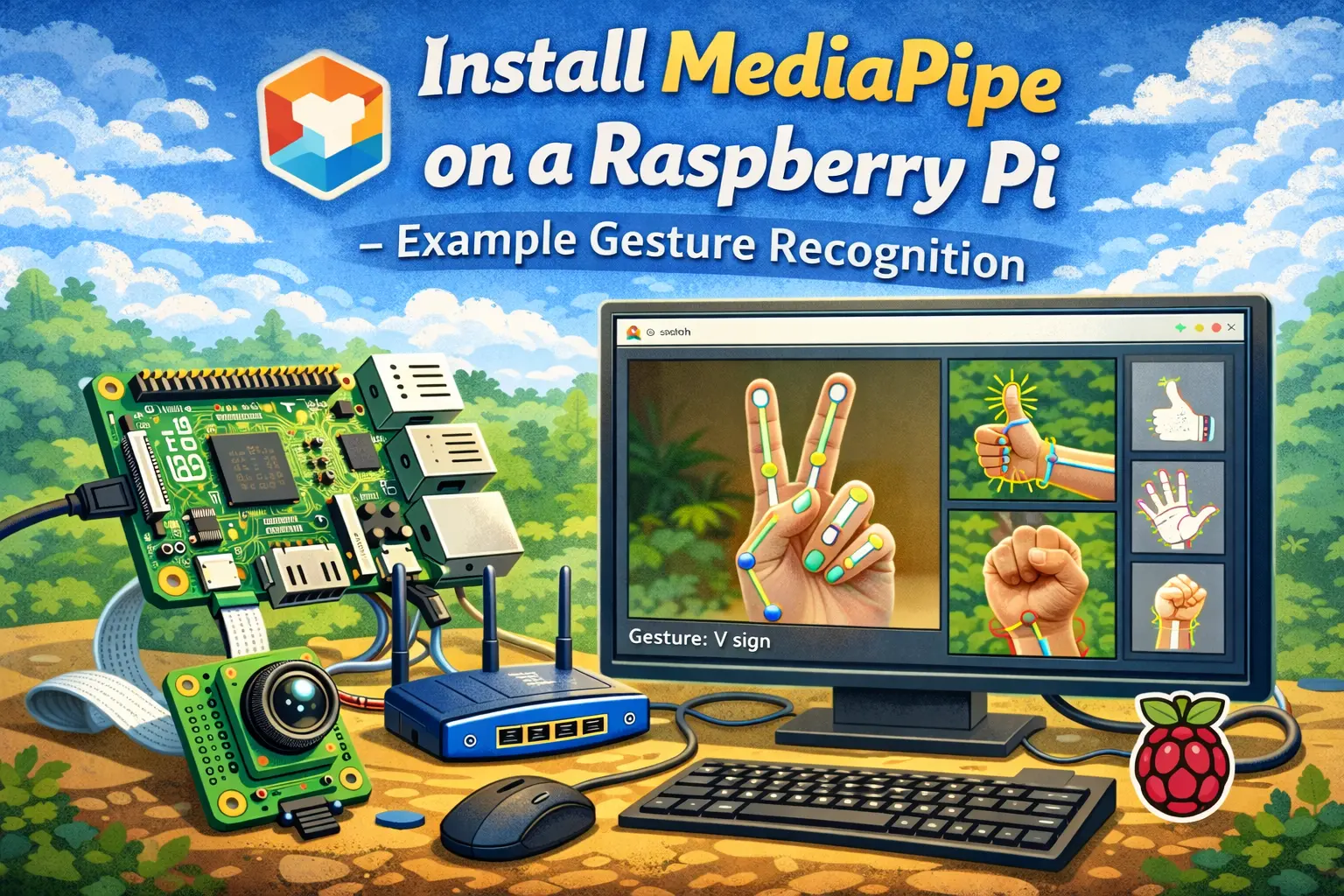
This guide is an introduction to the MediaPipe Python library on a Raspberry Pi board. It covers installing MediaPipe using pip on a virtual environment and running a gesture recognition example.
MediaPipe is a cross-platform pipeline framework to build custom machine learning (ML) solutions for streaming media (live video). The MediaPipe framework was open-sourced by Google and is currently available in early release.
Before proceeding:
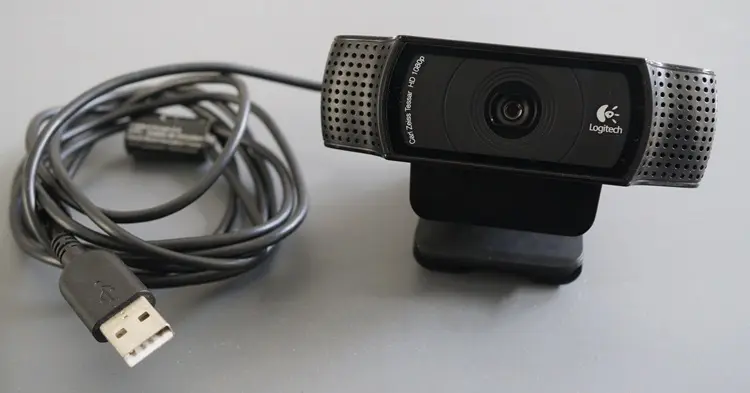
In our Raspberry Pi projects with a camera, we will be using a regular Logitech USB camera, like the one shown in the picture below.
MediaPipe is an open-source cross-platform framework for building pipelines to perform computer vision applications built on top of TensorFlow Lite.
MediaPipe has abstracted away the complexities of making on-device ML customizable, production-ready, and accessible across platforms. Using MediaPipe, you can use a simple API that receives an input image and outputs a prediction result.
Top 6
Raspberry Pi eBooks
From Zero to Professional

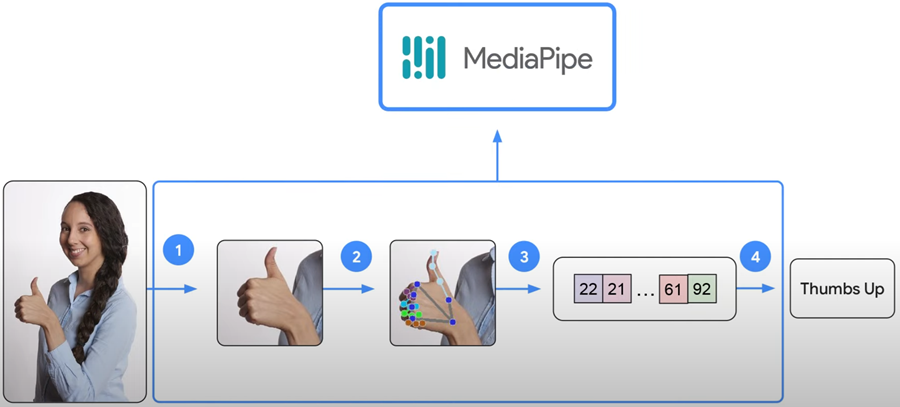
In summary, here are the MediaPipe key features:
Having a Remote Desktop Connection with your Raspberry Pi, update and upgrade your Raspberry Pi if any updates are available. Run the following command:
sudo apt update && sudo apt upgrade -yWe already installed the OpenCV library in a virtual environment in a previous guide. We need to install the MediaPipe library in the same virtual environment.
Enter the following command in a Terminal window to move to the Projects directory on the Desktop:
cd ~/Desktop/projectsThen, you can run the following command to check that the virtual environment is there.
ls -l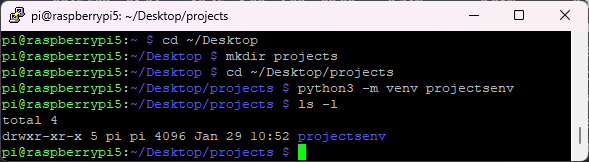
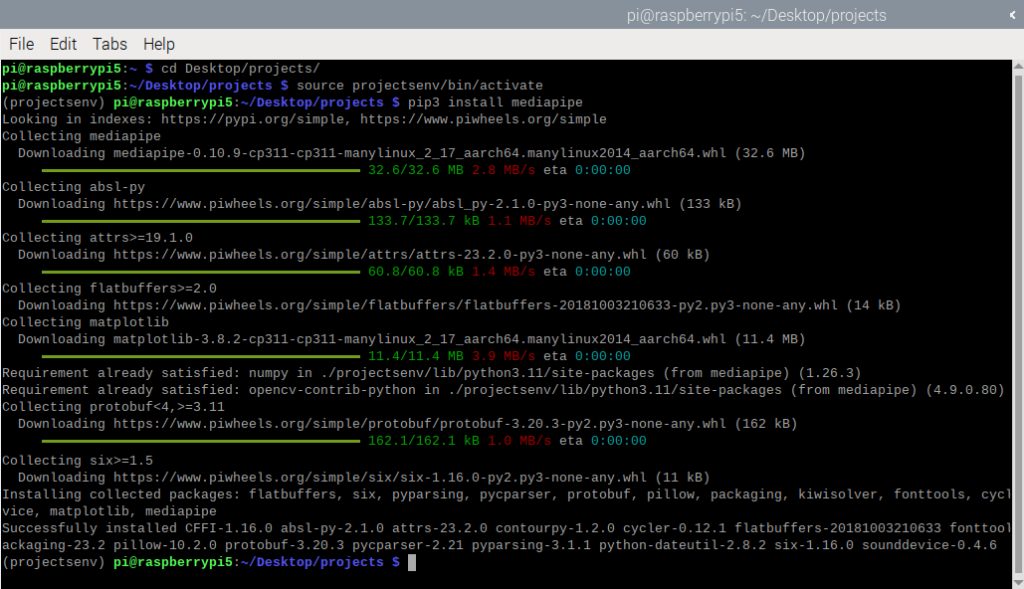
Activate the virtual environment projectsenv that was previously created when installing OpenCV:
source projectsenv/bin/activateYour prompt should change to indicate that you are now in the virtual environment.

Now that we are in our virtual environment, we can install the MediaPipe library. Run the following command:
pip3 install mediapipeAfter a few seconds, the library will be installed (ignore any yellow warnings about deprecated packages).
You have everything ready to start writing your Python code and testing the gesture recognition example.
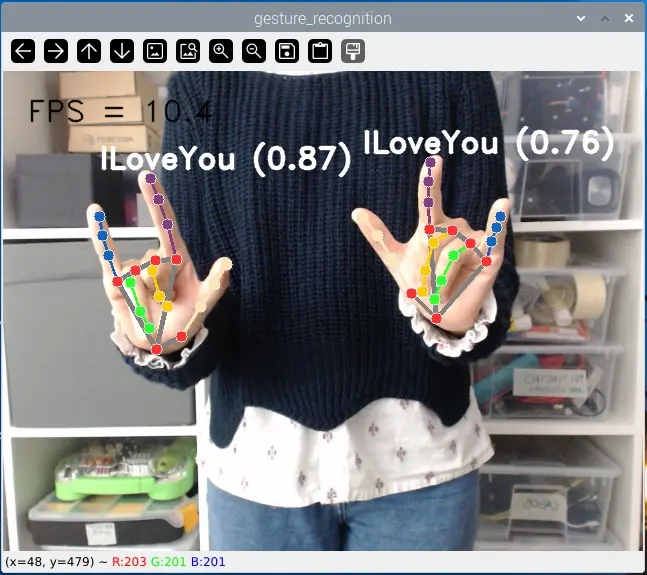
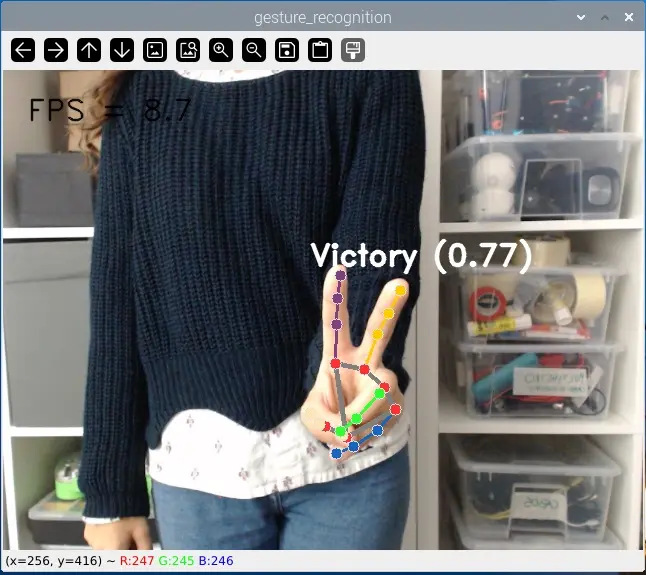
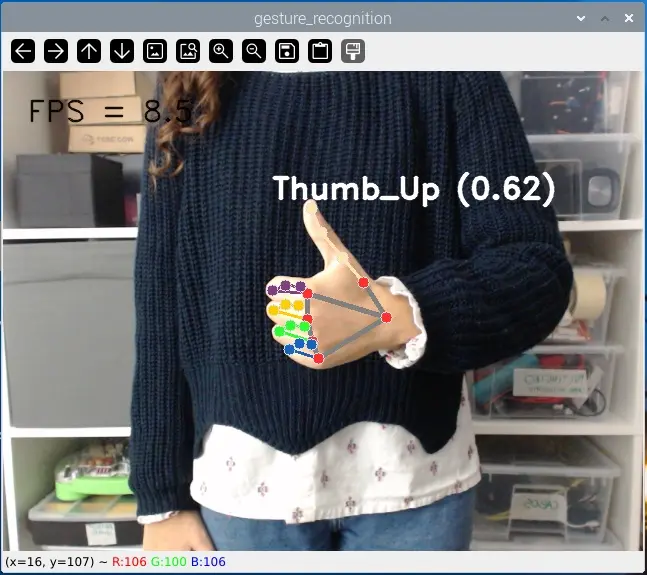
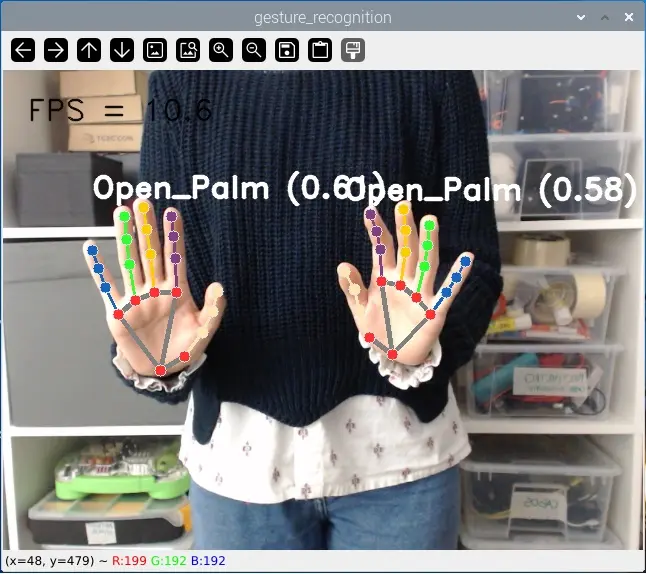
Having MediaPipe installed, we’ll be running a sample code that does gesture recognition. This script recognizes hand gestures in an image or video format. The default model can recognize seven different gestures in one or two hands:
This particular model was created by Google and it went through their rigorous ML Fairness standards and is production-ready.
Clone the GitHub repository to your Raspberry Pi with the git command:
git clone https://github.com/RuiSantosdotme/mediapipe.gitChange to the mediapipe/raspberry_pi_gesture_recognizer directory
cd mediapipe/raspberry_pi_gesture_recognizerUse the ls command to see if you find the files illustrated in the screenshot below:
ls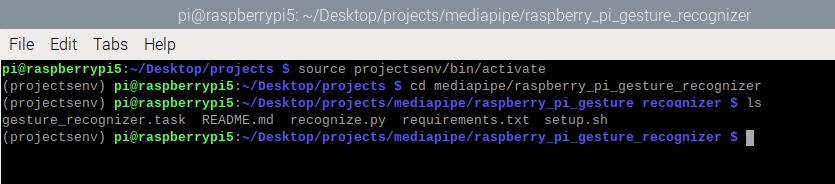
Finally, enter the command to install any missing requirements:
sh setup.sh# Complete project details at https://ebokify.com/install-mediapipe-raspberry-pi/
# Copyright 2023 The MediaPipe Authors. All Rights Reserved. Licensed under the Apache License, Version 2.0 (the "License"); you may not use this file except in compliance with the License. You may obtain a copy of the License at
# http://www.apache.org/licenses/LICENSE-2.0 Unless required by applicable law or agreed to in writing, software distributed under the License is distributed on an "AS IS" BASIS, WITHOUT WARRANTIES OR CONDITIONS OF ANY KIND, either express or implied. See the License for the specific language governing permissions and limitations under the License.
# Main scripts to run gesture recognition.
import argparse
import sys
import time
import cv2
import mediapipe as mp
from mediapipe.tasks import python
from mediapipe.tasks.python import vision
from mediapipe.framework.formats import landmark_pb2
mp_hands = mp.solutions.hands
mp_drawing = mp.solutions.drawing_utils
mp_drawing_styles = mp.solutions.drawing_styles
# Global variables to calculate FPS
COUNTER, FPS = 0, 0
START_TIME = time.time()
def run(model: str, num_hands: int,
min_hand_detection_confidence: float,
min_hand_presence_confidence: float, min_tracking_confidence: float,
camera_id: int, width: int, height: int) -> None:
"""Continuously run inference on images acquired from the camera.
Args:
model: Name of the gesture recognition model bundle.
num_hands: Max number of hands can be detected by the recognizer.
min_hand_detection_confidence: The minimum confidence score for hand
detection to be considered successful.
min_hand_presence_confidence: The minimum confidence score of hand
presence score in the hand landmark detection.
min_tracking_confidence: The minimum confidence score for the hand
tracking to be considered successful.
camera_id: The camera id to be passed to OpenCV.
width: The width of the frame captured from the camera.
height: The height of the frame captured from the camera.
"""
# Start capturing video input from the camera
cap = cv2.VideoCapture(camera_id)
cap.set(cv2.CAP_PROP_FRAME_WIDTH, width)
cap.set(cv2.CAP_PROP_FRAME_HEIGHT, height)
# Visualization parameters
row_size = 50 # pixels
left_margin = 24 # pixels
text_color = (0, 0, 0) # black
font_size = 1
font_thickness = 1
fps_avg_frame_count = 10
# Label box parameters
label_text_color = (255, 255, 255) # white
label_font_size = 1
label_thickness = 2
recognition_frame = None
recognition_result_list = []
def save_result(result: vision.GestureRecognizerResult,
unused_output_image: mp.Image, timestamp_ms: int):
global FPS, COUNTER, START_TIME
# Calculate the FPS
if COUNTER % fps_avg_frame_count == 0:
FPS = fps_avg_frame_count / (time.time() - START_TIME)
START_TIME = time.time()
recognition_result_list.append(result)
COUNTER += 1
# Initialize the gesture recognizer model
base_options = python.BaseOptions(model_asset_path=model)
options = vision.GestureRecognizerOptions(base_options=base_options,
running_mode=vision.RunningMode.LIVE_STREAM,
num_hands=num_hands,
min_hand_detection_confidence=min_hand_detection_confidence,
min_hand_presence_confidence=min_hand_presence_confidence,
min_tracking_confidence=min_tracking_confidence,
result_callback=save_result)
recognizer = vision.GestureRecognizer.create_from_options(options)
# Continuously capture images from the camera and run inference
while cap.isOpened():
success, image = cap.read()
if not success:
sys.exit(
'ERROR: Unable to read from webcam. Please verify your webcam settings.'
)
image = cv2.flip(image, 1)
# Convert the image from BGR to RGB as required by the TFLite model.
rgb_image = cv2.cvtColor(image, cv2.COLOR_BGR2RGB)
mp_image = mp.Image(image_format=mp.ImageFormat.SRGB, data=rgb_image)
# Run gesture recognizer using the model.
recognizer.recognize_async(mp_image, time.time_ns() // 1_000_000)
# Show the FPS
fps_text = 'FPS = {:.1f}'.format(FPS)
text_location = (left_margin, row_size)
current_frame = image
cv2.putText(current_frame, fps_text, text_location, cv2.FONT_HERSHEY_DUPLEX,
font_size, text_color, font_thickness, cv2.LINE_AA)
if recognition_result_list:
# Draw landmarks and write the text for each hand.
for hand_index, hand_landmarks in enumerate(
recognition_result_list[0].hand_landmarks):
# Calculate the bounding box of the hand
x_min = min([landmark.x for landmark in hand_landmarks])
y_min = min([landmark.y for landmark in hand_landmarks])
y_max = max([landmark.y for landmark in hand_landmarks])
# Convert normalized coordinates to pixel values
frame_height, frame_width = current_frame.shape[:2]
x_min_px = int(x_min * frame_width)
y_min_px = int(y_min * frame_height)
y_max_px = int(y_max * frame_height)
# Get gesture classification results
if recognition_result_list[0].gestures:
gesture = recognition_result_list[0].gestures[hand_index]
category_name = gesture[0].category_name
score = round(gesture[0].score, 2)
result_text = f'{category_name} ({score})'
# Compute text size
text_size = \
cv2.getTextSize(result_text, cv2.FONT_HERSHEY_DUPLEX, label_font_size,
label_thickness)[0]
text_width, text_height = text_size
# Calculate text position (above the hand)
text_x = x_min_px
text_y = y_min_px - 10 # Adjust this value as needed
# Make sure the text is within the frame boundaries
if text_y < 0:
text_y = y_max_px + text_height
# Draw the text
cv2.putText(current_frame, result_text, (text_x, text_y),
cv2.FONT_HERSHEY_DUPLEX, label_font_size,
label_text_color, label_thickness, cv2.LINE_AA)
# Draw hand landmarks on the frame
hand_landmarks_proto = landmark_pb2.NormalizedLandmarkList()
hand_landmarks_proto.landmark.extend([
landmark_pb2.NormalizedLandmark(x=landmark.x, y=landmark.y,
z=landmark.z) for landmark in
hand_landmarks
])
mp_drawing.draw_landmarks(
current_frame,
hand_landmarks_proto,
mp_hands.HAND_CONNECTIONS,
mp_drawing_styles.get_default_hand_landmarks_style(),
mp_drawing_styles.get_default_hand_connections_style())
recognition_frame = current_frame
recognition_result_list.clear()
if recognition_frame is not None:
cv2.imshow('gesture_recognition', recognition_frame)
# Stop the program if the ESC key is pressed.
if cv2.waitKey(1) == 27:
break
recognizer.close()
cap.release()
cv2.destroyAllWindows()
def main():
parser = argparse.ArgumentParser(
formatter_class=argparse.ArgumentDefaultsHelpFormatter)
parser.add_argument(
'--model',
help='Name of gesture recognition model.',
required=False,
default='gesture_recognizer.task')
parser.add_argument(
'--numHands',
help='Max number of hands that can be detected by the recognizer.',
required=False,
default=1)
parser.add_argument(
'--minHandDetectionConfidence',
help='The minimum confidence score for hand detection to be considered '
'successful.',
required=False,
default=0.5)
parser.add_argument(
'--minHandPresenceConfidence',
help='The minimum confidence score of hand presence score in the hand '
'landmark detection.',
required=False,
default=0.5)
parser.add_argument(
'--minTrackingConfidence',
help='The minimum confidence score for the hand tracking to be '
'considered successful.',
required=False,
default=0.5)
# Finding the camera ID can be very reliant on platform-dependent methods.
# One common approach is to use the fact that camera IDs are usually indexed sequentially by the OS, starting from 0.
# Here, we use OpenCV and create a VideoCapture object for each potential ID with 'cap = cv2.VideoCapture(i)'.
# If 'cap' is None or not 'cap.isOpened()', it indicates the camera ID is not available.
parser.add_argument(
'--cameraId', help='Id of camera.', required=False, default=0)
parser.add_argument(
'--frameWidth',
help='Width of frame to capture from camera.',
required=False,
default=640)
parser.add_argument(
'--frameHeight',
help='Height of frame to capture from camera.',
required=False,
default=480)
args = parser.parse_args()
run(args.model, int(args.numHands), args.minHandDetectionConfidence,
args.minHandPresenceConfidence, args.minTrackingConfidence,
int(args.cameraId), args.frameWidth, args.frameHeight)
if __name__ == '__main__':
main()Having your Virtual Environment activated, run the next command:
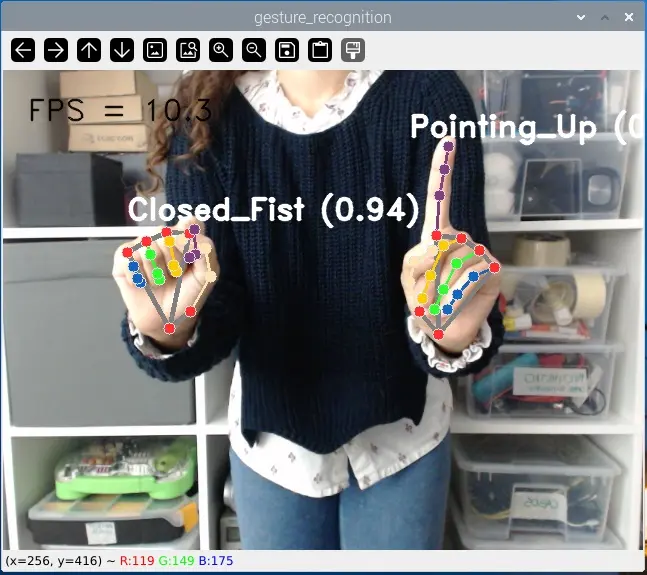
python recognize.py --cameraId 0 --model gesture_recognizer.task --numHands 2You must enter the correct camera ID number for your USB camera; in my case, it’s 0, but you might need to change it. You can find more information about the supported parameters in the documentation.
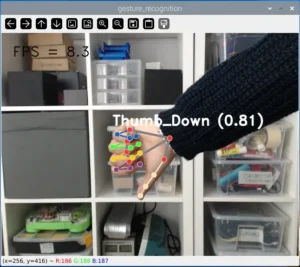
With the example running, make different gestures in front of the camera. It will detect and identify the gestures (from the list of gestures we’ve seen previously). It can detect gestures in one hand or two hands simultaneously.
This tutorial was a quick getting-started guide to MediaPipe with the Raspberry Pi. MediaPipe is an easy-to-use framework that allows you to build machine-learning projects.
In this guide, we tested the hand gesture recognition example. MediaPipe also has other interesting examples, like counting the number of raised fingers on your hand. This can be especially useful in automation projects because it allows you to control something with gestures. For example, turn a specific Raspberry Pi GPIO on when you have one finger raised and turn it off when you have two raised fingers. The possibilities are endless.
We hope you’ve found this tutorial interesting.
If there’s enough interest from our readers in this kind of subject, we intend to create more machine-learning projects using MediaPipe.
If you would like to learn more about the Raspberry Pi, check out our tutorials:
🚀 Discover the world of electronics and innovation!
✨ Create, program, and experiment with all your creative ideas with ease.
🔥 Don't wait! Browse SpotPear products now and start your amazing project!