Book Categories:


Wait, don't go!
Become a Member Today and Unlock Access to All eBooks!
Thousands of eBooks at your fingertips. Read, learn, and grow anytime, anywhere.

In this guide, you’ll learn how to set up a video streaming web server with a Raspberry Pi and a camera using a simple script with the Picamera2 library. You’ll be able to access the streaming web server on any web browser in your local network.
Before proceeding, make sure you check the following prerequisites:
Picamera2 is a Python library for interacting with the Raspberry Pi’s camera. It is based on the libcamera camera stack, and it is maintained by the Raspberry Pi Foundation. It’s no longer recommended to use the older PiCamera library with the latest Raspberry Pi OS versions.
The Picamera2 library is supported on all Raspberry Pi models from the Pi Zero to the Raspberry Pi 5.
Having an SSH connection established with your Raspberry Pi, update and upgrade your Raspberry Pi if any updates are available. Run the following command:
sudo apt update && sudo apt upgrade -y
Run the next command to install the Picamera2 library in your Raspberry Pi.
sudo apt install -y python3-picamera2It is strongly recommended to install and update Picamera2 using the apt command described earlier, which will avoid compatibility problems. I’ve encountered many compilation issues while trying to install the Picamera2 library with the pip command on a virtual environment.
The Raspberry Pi camera is a small and low-cost camera module compatible with the Raspberry Pi boards. Even though it can be good enough for most projects, some USB cameras will provide better image quality. For this guide, we’ll be using the Raspberry Pi Camera V2 module shown in the following picture:
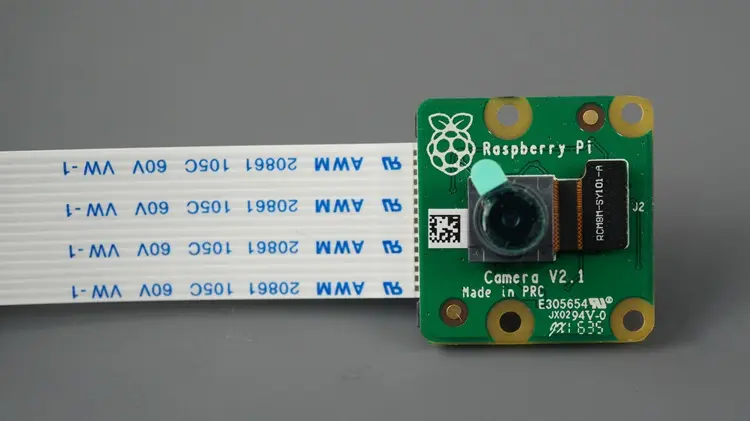
This guide also works with the Raspberry Pi Camera V3 and the camera is compatible with all Raspberry Pi models.
If you are running the latest version of Raspberry Pi OS, the official Raspberry Pi cameras will be detected and enabled automatically.
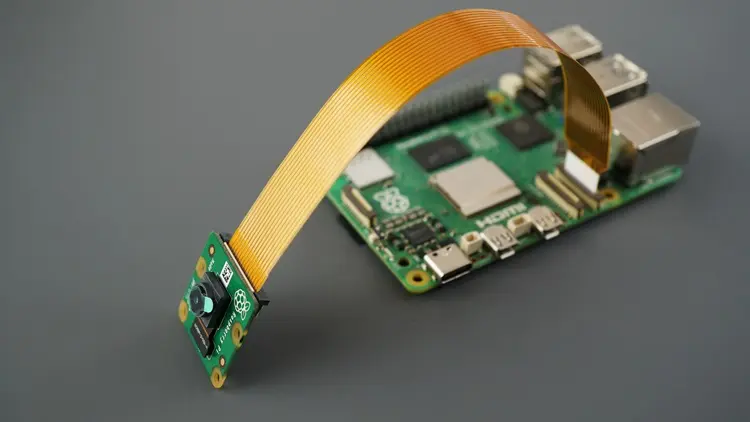
Connecting the Raspberry Pi Camera Module is very straightforward. With the Pi shutdown, connect the camera to the Pi CSI port as shown in the following figure.
Running a streaming web server is fairly easy with the Raspberry Pi camera thanks to the Picamera2 Python library.
Create a new file called stream_server.py by running the following command:
nano stream_server.pyCopy the following code to your newly created file:
# Ebokify
# Complete project details at https://ebokify.com/raspberry-pi-mjpeg-streaming-web-server-picamera2/

# Mostly copied from https://picamera.readthedocs.io/en/release-1.13/recipes2.html
# Run this script, then point a web browser at http:<this-ip-address>:7123
# Note: needs simplejpeg to be installed (pip3 install simplejpeg).

import io
import logging
import socketserver
from http import server
from threading import Condition

from picamera2 import Picamera2
from picamera2.encoders import JpegEncoder
from picamera2.outputs import FileOutput

PAGE = """\
<html>
<head>
<title>picamera2 MJPEG streaming demo</title>
</head>
<body>
<h1>Picamera2 MJPEG Streaming Demo</h1>
<img src="stream.mjpg" width="640" height="480" />
</body>
</html>
"""

class StreamingOutput(io.BufferedIOBase):
    def __init__(self):
        self.frame = None
        self.condition = Condition()

    def write(self, buf):
        with self.condition:
            self.frame = buf
            self.condition.notify_all()


class StreamingHandler(server.BaseHTTPRequestHandler):
    def do_GET(self):
        if self.path == '/':
            self.send_response(301)
            self.send_header('Location', '/index.html')
            self.end_headers()
        elif self.path == '/index.html':
            content = PAGE.encode('utf-8')
            self.send_response(200)
            self.send_header('Content-Type', 'text/html')
            self.send_header('Content-Length', len(content))
            self.end_headers()
            self.wfile.write(content)
        elif self.path == '/stream.mjpg':
            self.send_response(200)
            self.send_header('Age', 0)
            self.send_header('Cache-Control', 'no-cache, private')
            self.send_header('Pragma', 'no-cache')
            self.send_header('Content-Type', 'multipart/x-mixed-replace; boundary=FRAME')
            self.end_headers()
            try:
                while True:
                    with output.condition:
                        output.condition.wait()
                        frame = output.frame
                    self.wfile.write(b'--FRAME\r\n')
                    self.send_header('Content-Type', 'image/jpeg')
                    self.send_header('Content-Length', len(frame))
                    self.end_headers()
                    self.wfile.write(frame)
                    self.wfile.write(b'\r\n')
            except Exception as e:
                logging.warning(
                    'Removed streaming client %s: %s',
                    self.client_address, str(e))
        else:
            self.send_error(404)
            self.end_headers()


class StreamingServer(socketserver.ThreadingMixIn, server.HTTPServer):
    allow_reuse_address = True
    daemon_threads = True


picam2 = Picamera2()
picam2.configure(picam2.create_video_configuration(main={"size": (640, 480)}))
output = StreamingOutput()
picam2.start_recording(JpegEncoder(), FileOutput(output))

try:
    address = ('', 7123)
    server = StreamingServer(address, StreamingHandler)
    server.serve_forever()
finally:
    picam2.stop_recording()
Press Ctrl+X to save your file, type Y, and Enter.
You can customize the web page by changing the HTML and adding some CSS to the PAGE variable. The stream.mjpg refers to the streaming files (the actual video).
PAGE = """\
<html>
<head>
<title>picamera2 MJPEG streaming demo</title>
</head>
<body>
<h1>Picamera2 MJPEG Streaming Demo</h1>
<img src="stream.mjpg" width="640" height="480" />
</body>
</html>
"""Run the following command to get the Raspberry Pi IP address. You’ll need the IP address to access your web server.
hostname -I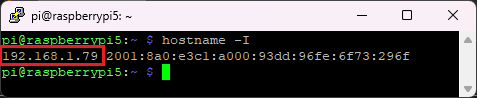
Then, start your web server by running the following command in your project directory:
python stream_server.py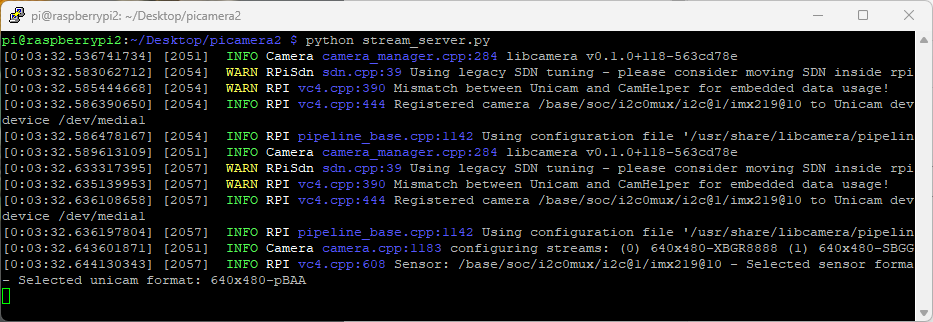
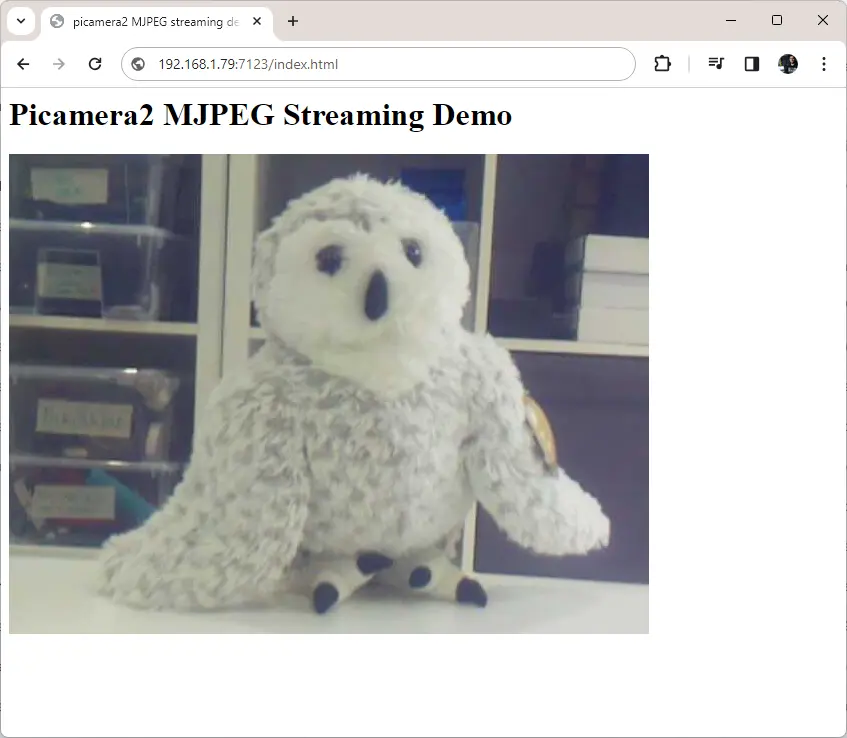
Finally, open any web browser on your local network and type the Raspberry Pi IP address followed by the port number:7123.
http://raspberry-pi-ip-address:7123That’s it! Your Raspberry Pi web server is streaming the MJPEG files.
In this quick guide, you will learn how to set up an IP camera using the Raspberry Pi and the Raspberry Pi camera. This can be useful to monitor something on your network in real-time. One of the most used applications is to take an eye on 3D printers, but this can also be used for a wide range of applications, like smart doorbells or security cameras.
We hope you’ve found this tutorial useful. You may also want to check other camera-related tutorials.
Finally, you can check all our Raspberry Pi projects on the following link: