Book Categories:


Wait, don't go!
Become a Member Today and Unlock Access to All eBooks!
Thousands of eBooks at your fingertips. Read, learn, and grow anytime, anywhere.
Become a Member Today and Unlock Access to All eBooks!
Thousands of eBooks at your fingertips. Read, learn, and grow anytime, anywhere.
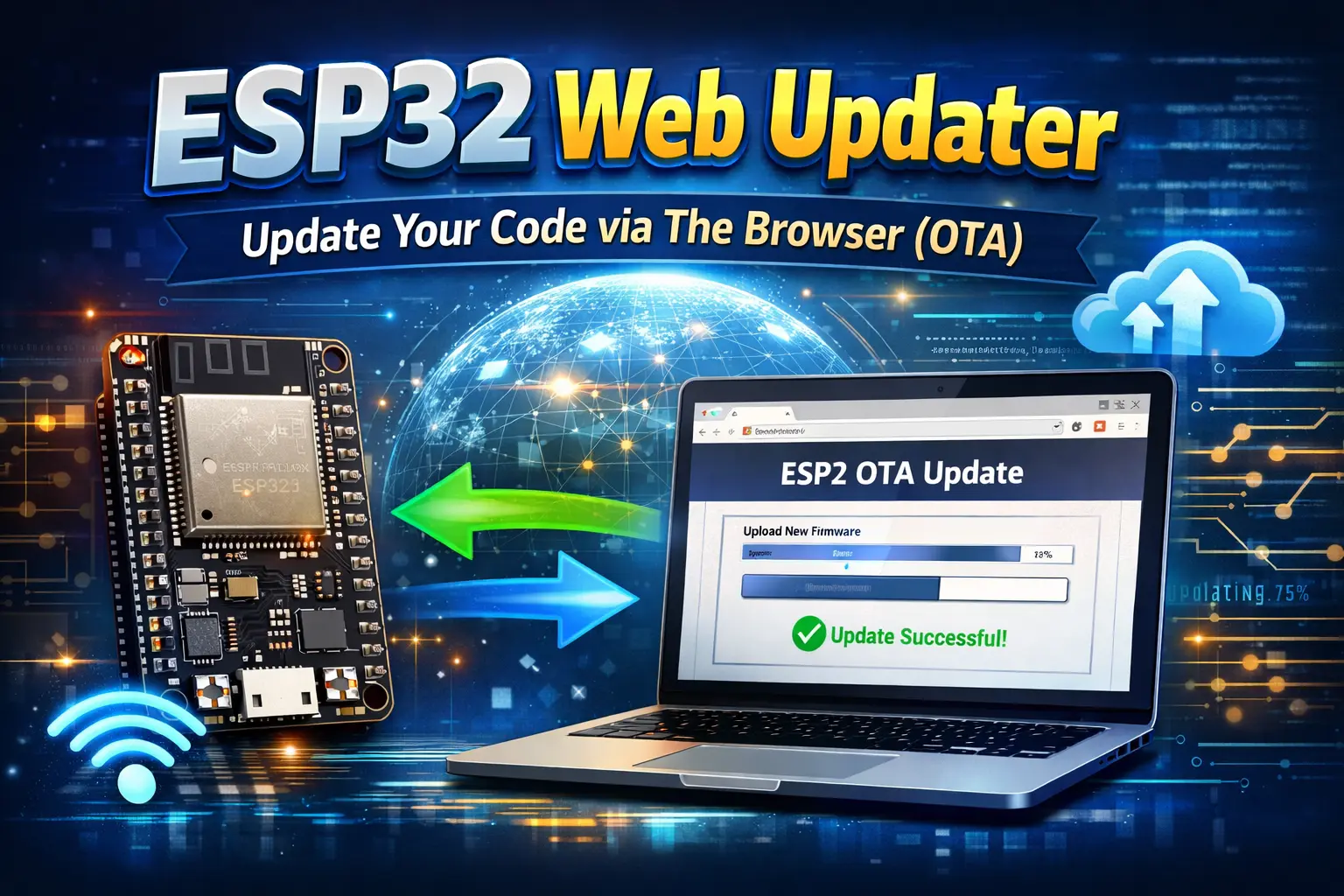
Searching for a way to upload new firmware to your ESP32 without the need for a USB cable? If your answer is yes, this guide is just right for you!
In this guide, I’ll show you how to implement an ESP32 Web Updater that allows you to upload bin files to your ESP32 via a convenient Web Interface in your browser!
Using an ESP32 Web Updater, you can upload new code to your ESP32 without the need for a USB cable. Instead, the ESP32 hosts a web server that you can access through a browser and easily upload new firmware – all Over The Air (OTA).
There are several reasons why OTA updates make sense. Here are some of them:
Before you begin, make sure you have the Arduino IDE installed and configured for ESP32, a working Wi-Fi network, and a basic understanding of uploading sketches to the ESP32 via a USB cable.
Top 6
ESP32 eBooks
From Zero to Professional

Fortunately, the Arduino ESP32 core already offers everything we need, so we don’t have to install any additional libraries.
In the following, we’ll make use of the built-in ESPmDNS and HTTPUpdateServer libraries to provide the update server under a custom hostname.
The following sketch hosts a web server with an interface to upload new firmware and even a file system. Using mDNS, you can access the update page in your browser under a custom hostname (in this example: http://esp32.local/update).
Theoretically, this is the last time you need to use a USB cable for uploading a new sketch.
Before you upload the sketch, make sure to set the correct Wi-Fi credentials!
#include <ESPmDNS.h>
#include <HTTPUpdateServer.h>

// Wi-Fi setup
const char* ssid = "YOUR_SSID";
const char* password = "YOUR_PASSWORD";
const char *hostname = "esp32";

// upload user setup
const char* username = "admin";
const char* user_password = "123456";

WebServer httpServer(80);
HTTPUpdateServer httpUpdater;

void setup(void) {

  Serial.begin(115200);
  Serial.println();
  Serial.println("Booting Sketch...");
  WiFi.mode(WIFI_AP_STA);
  WiFi.begin(ssid, password);

  while (WiFi.waitForConnectResult() != WL_CONNECTED) {
    WiFi.begin(ssid, password);
    Serial.println("WiFi failed, retrying.");
  }

  if (MDNS.begin(hostname)) {
    Serial.println("mDNS responder started");
  }

  httpUpdater.setup(&httpServer, username, user_password);
  httpServer.begin();

  MDNS.addService("http", "tcp", 80);
  Serial.printf("HTTPUpdateServer ready! Open http://%s.local/update in your browser\n", hostname);
}

void loop(void) {
  httpServer.handleClient();
}
As you may have noticed already, the HTTPUpdateServer library allows you to set login credentials used for uploading new firmware. If you do not want a login procedure, replace the line:
httpUpdater.setup(&httpServer, username, user_password);with:
httpUpdater.setup(&httpServer);After uploading the sketch to your board, access the update page under http://esp32.local/update (or replace with your own hostname). Then, you will be prompted for the username and password specified in the sketch above.
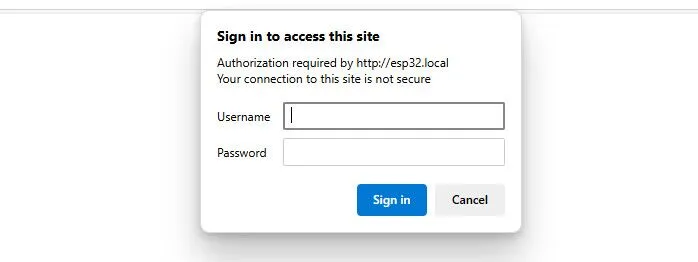
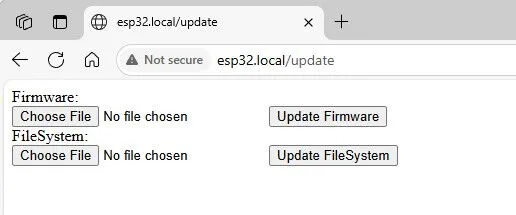
If the credentials are correct, you now have the option to select a bin file and upload it to your board.
Top 6
Arduino eBooks
From Zero to Professional

Now, it’s time to compile our updated firmware and create a bin file that we can upload.
Always make sure, though, that you keep the web updater part included!
For testing, feel free to copy the following sketch, which will blink the built-in LED at GPIO 2.
#include <ESPmDNS.h>
#include <HTTPUpdateServer.h>

// Wi-Fi setup
const char* ssid = "YOUR_SSID";
const char* password = "YOUR_PASSWORD";
const char *hostname = "esp32";

// upload user setup
const char* username = "admin";
const char* user_password = "123456";

WebServer httpServer(80);
HTTPUpdateServer httpUpdater;

unsigned long prevMillis = 0;  // a helper variable for the timing
const long interval = 500;  // interval at which to blink the led in milliseconds
int ledState = LOW;  // state of the LED
const int ledPin = 2;

void setup(void) {
  pinMode(ledPin, OUTPUT);

  Serial.begin(115200);
  Serial.println();
  Serial.println("Booting Sketch...");
  WiFi.mode(WIFI_AP_STA);
  WiFi.begin(ssid, password);

  while (WiFi.waitForConnectResult() != WL_CONNECTED) {
    WiFi.begin(ssid, password);
    Serial.println("WiFi failed, retrying.");
  }

  if (MDNS.begin(hostname)) {
    Serial.println("mDNS responder started");
  }

  httpUpdater.setup(&httpServer, username, user_password);
  httpServer.begin();

  MDNS.addService("http", "tcp", 80);
  Serial.printf("HTTPUpdateServer ready! Open http://%s.local/update in your browser\n", hostname);
}

void loop(void) {
  httpServer.handleClient();

  unsigned long currentMillis = millis();
  if (currentMillis - prevMillis >= interval) {
    // save the last time the LED was blinked
    prevMillis = currentMillis;
    // if the LED is off turn it on and vice-versa
    ledState = !ledState;
    // update LED state
    digitalWrite(ledPin,  ledState);
  }
}
To compile the new sketch and create a .bin file, in the Arduino IDE, click Sketch > Export Compiled Binary. Then click Sketch > Show Sketch Folder to get to the output file location.
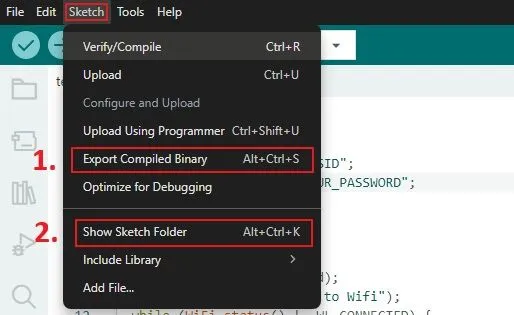
Inside the build folder (and its subfolders), search for a file called something like “YOUR_PROJECT.ino.bin“. That’s the file you want to upload via the web interface.
Last but not least, we need to upload the .bin file to our ESP32.
Head to your upload URL (http://esp32.local/upload), enter the login credentials, select the .bin file you created in step 3, and hit upload!
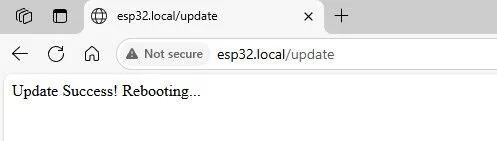
After a few seconds of loading time, your ESP should restart, and you should see the following message in your browser:
If your project is intended to be used in a public environment where strangers have access to it, make sure to secure it properly so no one can upload harmful firmware to your ESP32.
Always use a login with safe credentials to prevent unauthorized access. In addition, consider HTTPS or internal network use only.
The ESP32 Web Updater provides a fast and user-friendly method to update firmware wirelessly over the air. It’s especially useful for IoT and embedded applications where devices are not easily accessible. With this setup, you can conveniently manage updates across your ESP32 devices.
Share your thoughts on the ESP32 Web Updater in the comments below!
Thanks for reading!
Links marked with an asterisk (*) are affiliate links, which means we may receive a commission for purchases made through these links at no extra cost to you. Read more on our Affiliate Disclosure Page.
🚀 Discover the world of electronics and innovation!
✨ Create, program, and experiment with all your creative ideas with ease.
🔥 Don't wait! Browse SpotPear products now and start your amazing project!





![ESP32 IR Receiver: How To Detect IR Remote Signals [Arduino IDE]](https://ebokify.com/wp-content/uploads/2026/01/ESP32-IR-Receiver-How-To-Detect-IR-Remote-Signals-Arduino-IDE-1-768x512.webp "ESP32 IR Receiver: How To Detect IR Remote Signals [Arduino IDE] 11")