Book Categories:


Wait, don't go!
Become a Member Today and Unlock Access to All eBooks!
Thousands of eBooks at your fingertips. Read, learn, and grow anytime, anywhere.
Do you want to receive real-time sensor readings, like temperature and humidity, straight to your phone from your ESP32? In this tutorial, you’ll learn how to create an ESP32 Telegram bot to send sensor readings from a DHT22 sensor as Telegram messages!
In addition, we will create a custom Telegram command to request sensor data only when needed.
This is perfect for home automation, weather stations, or security systems.
Also, feel free to follow along if you use a different sensor. All the Telegram-related steps will be the same!
Before you can get started with sending Telegram messages from the ESP32, make sure you’ve got the Telegram app installed on your phone.
Additionally, your Arduino IDE needs to be set up to work with ESP32 boards. Check out this tutorial if you need help setting the ESP32 up in Arduino IDE.
You can also follow along in Visual Studio Code using PlatformIO.
If you want to use the DHT22 sensor, make sure you have

We can send Telegram messages with the ESP32 using a Telegram bot. Everyone can easily create their own bot to customize commands and messages.
To create a Telegram bot, open your Telegram app and search for BotFather in the top right corner. After you click on START, the BotFather sends you a long list of commands. Simply click on the command “/newbot” or enter it in the chat.

Next, BotFather will ask you for a name for your bot. If everything worked out, you will receive another message with a link to your bot and an API token that we will need later on.
Now that the bot is created, we need to grab the chat ID of our specific chat with the bot. Before we can do that, though, we need to send a message to the bot. This can be absolutely anything. You can start a chat with your bot by clicking the link that the BotFather messaged you earlier.
Next, head to the following URL in your browser and replace “<BOT_TOKEN>” with your individual bot token.
https://api.telegram.org/bot<BOT_TOKEN>/getUpdatesSearch for the chat ID, which is specified in the following way:
{
  "ok": true,
  "result": [
    {
      "update_id": xxxxxxxx,
      "message": {
            ...
        },
        "chat": {
          "id": 7291227751,
          ...
        },
        "date": 1745596152,
        "text": "hi"
      }
    }
  ]
}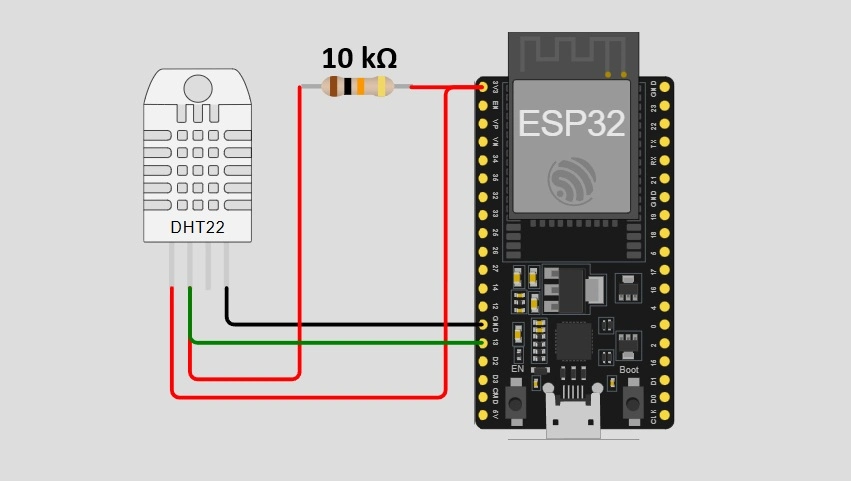
| DHT22 Pin | ESP32 Pin |
| VCC | 3V3 (3.3V) |
| Data | Any GPIO Pin (e.g, GPIO 4) + via 10kΩ resistor to 3.3V |
| NC (Not Connected) | —— |
| GND | GND |

Some DHT22 modules only have three pins. In that case, you can still wire it like in the diagram above, just keep in mind that the NC (not connected) pin is missing.
The DHT22 sensor uses a single-wire digital communication line, which means it is prone to signal noise. Hence, we use a 10 kΩ pull-up resistor between the DATA pin and VCC to ensure the line stays high (logical 1) when the sensor isn’t actively pulling it low (logical 0). This makes the communication more reliable.
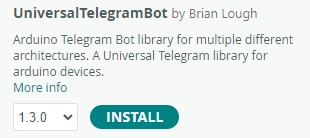
Let’s install the UniversalTelegramBot library in the Arduino IDE. Therefore, open your library manager under Sketch > Include Library > Manage Libraries…
Then, search for UniversalTelegramBot by Brian Lough and install it.
The next part of the tutorial only applies to you if you use the DHT22 sensor.
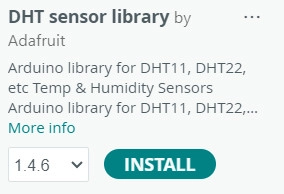
Search for the DHT sensor library by Adafruit and install it. If you are asked to install additional requirements like the Adafruit Unified Sensor library, do that as well.
In the following, we will use the UniversalTelegramBot library to send the sensor readings from the DHT22 in the Telegram chat every 5 minutes.
#include <WiFi.h>
#include <WifiClientSecure.h>
#include <UniversalTelegramBot.h>
#include <DHT.h>

// Wi-Fi credentials
const char* ssid = "WIFI_SSID";
const char* password = "WIFI_PASSWORD";
WiFiClientSecure client;

// Telegram bot credentials
String botToken = "BOT_TOKEN";
String chatID = "CHAT_ID";
UniversalTelegramBot bot(botToken, client);

// DHT settings
#define DHTPIN 4       // GPIO 4
#define DHTTYPE DHT22
DHT dht(DHTPIN, DHTTYPE);

void setup() {
  Serial.begin(115200);
  dht.begin();

  // Connect to Wi-Fi
  WiFi.begin(ssid, password);
  Serial.print("Connecting to WiFi");
  while (WiFi.status() != WL_CONNECTED) {
    delay(500);
    Serial.print(".");
  }
  Serial.println("\nWiFi connected");

  client.setInsecure();  // skip SSL verification for Telegram
}

void loop() {
  // Send the sensor readings every 5 minutes
  float temperature = dht.readTemperature();
  float humidity = dht.readHumidity();

  String message = "Temp: " + String(temperature) + " °C\n" +
                   "Humidity: " + String(humidity) + "%";

  bot.sendMessage(chatID, message);
  delay(300000);
}
Make sure to specify your Wi-Fi and Telegram bot credentials before uploading the sketch to your ESP32. Additionally, check the sensor pin and whether you use the DHT22 or DHT11.
In some use cases, it might be helpful to request information only if you need it. To achieve that, we can use Telegram bot commands. For instance, we could create the command “/status” to make the ESP32 read and send the sensor data only at our request.
Let’s introduce a new function to our sketch that handles incoming messages from the user:
void handleNewMessages(int numNewMessages)
{
  for (int i = 0; i < numNewMessages; i++) { // loop through new messages
    String chat_id = bot.messages[i].chat_id;
    String text = bot.messages[i].text; // contents of the message

    if (chat_id == chatID) { // only messages from our chat
      if (text == "/status") {
        float temperature = dht.readTemperature();
        float humidity = dht.readHumidity();

        String message = "Temp: " + String(temperature) + " °C\n" +
                         "Humidity: " + String(humidity) + "%";

        bot.sendMessage(chatID, message);
      }
      else {
        // Send a message with valid commands
        bot.sendMessage(chatID, "Valid commands:\n/status");
      }
    }
  }
}
In loop(), we need to periodically check for new messages. This can be done in the following way:
void loop() {
  // ... the rest of your code

  // Check for new messages every 500 milliseconds
  int numNewMessages = bot.getUpdates(bot.last_message_received + 1);
  if (numNewMessages > 0) { // if a new message was received
      handleNewMessages(numNewMessages);
  }
  delay(500);
}Now you know how to set up an ESP32 telegram bot to send sensor data and other messages directly to your phone. Whether you’re monitoring your home’s environment or building an IoT system, Telegram offers a fast and reliable way to get real-time alerts and updates.
Also, check out how to trigger IFTTT webhooks using the ESP32 to automate processes and create routines.
Feel free to share your experience with Telegram bots in the comments below!
Thanks for reading, happy making!
Links marked with an asterisk (*) are affiliate links, which means we may receive a commission for purchases made through these links at no extra cost to you. Read more on our Affiliate Disclosure Page.






![ESP32 IR Receiver: How To Detect IR Remote Signals [Arduino IDE]](https://ebokify.com/wp-content/uploads/2026/01/ESP32-IR-Receiver-How-To-Detect-IR-Remote-Signals-Arduino-IDE-1-768x512.webp "ESP32 IR Receiver: How To Detect IR Remote Signals [Arduino IDE] 12")