Book Categories:


Wait, don't go!
Become a Member Today and Unlock Access to All eBooks!
Thousands of eBooks at your fingertips. Read, learn, and grow anytime, anywhere.

The ESP32 comes with 2 Xtensa 32-bit LX6 microprocessors: core 0 and core 1. So, it is dual-core. When we run code on Arduino IDE, by default, it runs on core 1. In this tutorial, we’ll show you how to run code on the ESP32 second core by creating FreeRTOS tasks. You can run pieces of code simultaneously on both cores and make your ESP32 multitasking.
Note: You don’t necessarily need to run a dual-core to achieve multitasking.
The ESP32 comes with 2 Xtensa 32-bit LX6 microprocessors: core 0, and core 1.*
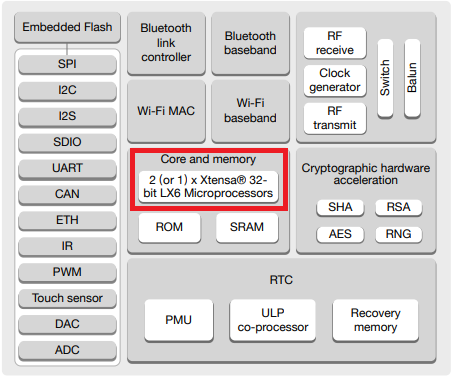
* some specific ESP32 models are not dual-core. Check the ESP32 board you’re using before following this tutorial. Here are some of the most popular models that are not dual core:
By default, when we run code on the ESP32, it runs on core 1. When we upload code to the ESP32 using the Arduino IDE, it just runs – we don’t have to worry about which core executes the code.
There’s a function that returns core in which the code is running:
xPortGetCoreID()
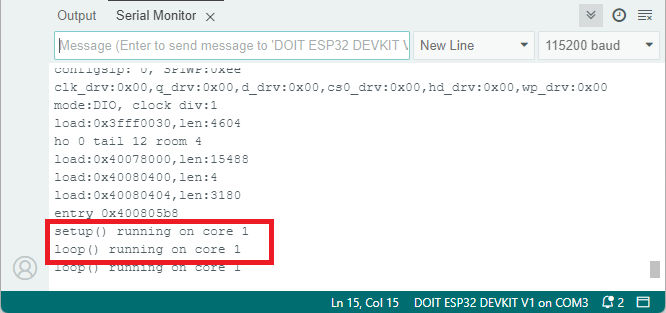
If you use that function in an Arduino sketch, you’ll see that both the setup() and loop() are running on core 1. Test it yourself by uploading the following sketch to your ESP32.
/*********
  Ebokify
  Complete project details at https://ebokify.com
*********/

void setup() {
  Serial.begin(115200);
  Serial.print("setup() running on core ");
  Serial.println(xPortGetCoreID());
}

void loop() {
  Serial.print("loop() running on core ");
  Serial.println(xPortGetCoreID());
}
Open the Serial Monitor at a baud rate of 115200 and check the core the Arduino sketch is running on.
The Arduino IDE supports FreeRTOS for the ESP32, which is a real-time operating system. This allows us to handle several tasks in parallel that run independently.
Tasks are pieces of code that execute something. For example, it can be blinking an LED, making a network request, measuring sensor readings, publishing sensor readings, etc…
To assign specific parts of code to a specific core, you need to create tasks. When creating a task, you can choose which core it will run in, as well as its priority. Priority values start at 0, with 0 being the lowest priority. The processor will run the tasks with higher priority first. To create tasks, you need to follow the next steps:
To create tasks, you need to follow the next steps:
1. Create a task handle. An example for Task 1:
TaskHandle_t Task1;2. In the setup(), create a task assigned to a specific core using the xTaskCreatePinnedToCore function. That function takes several arguments, including the priority and the core where the task should run (the last parameter).
xTaskCreatePinnedToCore(
      Task1code, /* Function to implement the task */
      "Task1", /* Name of the task */
      10000,  /* Stack size in words */
      NULL,  /* Task input parameter */
      0,  /* Priority of the task */
      &Task1,  /* Task handle. */
      0); /* Core where the task should run */
3. After creating the task, you should create a function that contains the code for the created task. In this example, you need to create the Task1code() function. Here’s how the task function looks:
Void Task1code( void * parameter) {
  for(;;) {
    Code for task 1 - infinite loop
    (...)
  }
}
The for(;;) creates an infinite loop. So, this function runs similarly to the loop() function. You can use it as a second loop in your code, for example.
If during your code execution you want to delete the created task, you can use the vTaskDelete()function, that accepts the task handle (Task1) as argument:
vTaskDelete(Task1);Let’s see how these concepts work with a simple example.
To follow this example, you need the following parts:
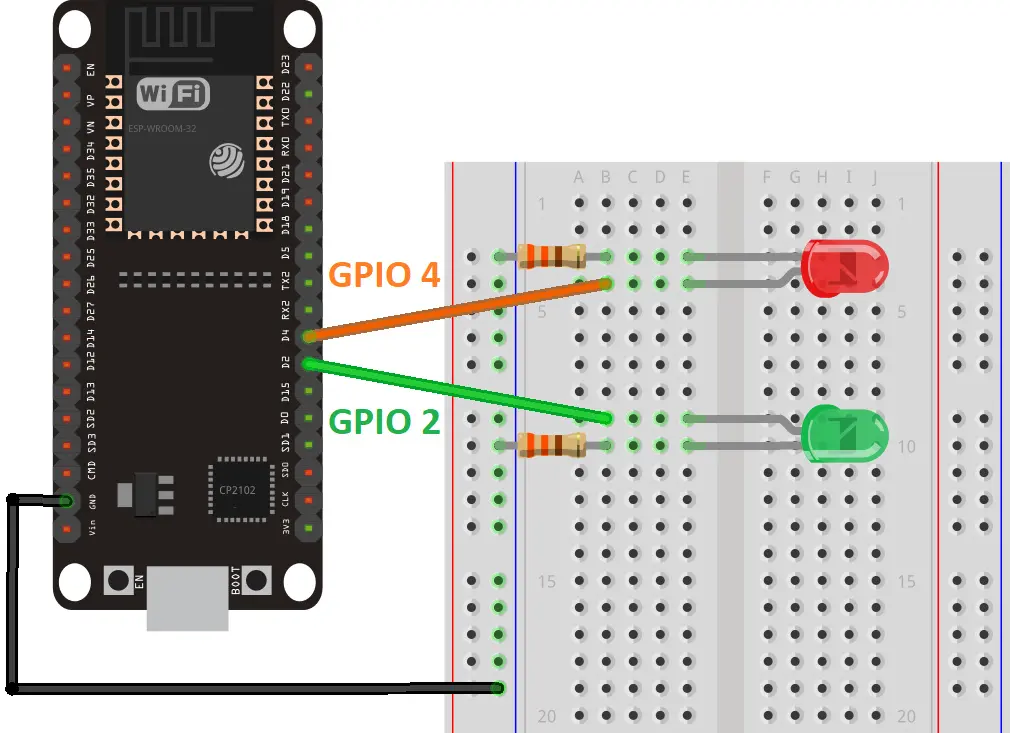
To create different tasks running on different cores, we’ll create two tasks that blink LEDs with different delay times. Wire two LEDs to the ESP32 as shown in the following diagram:
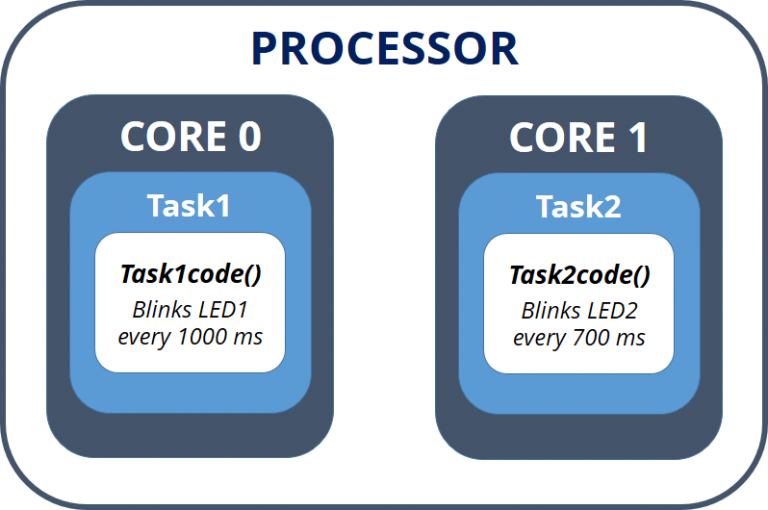
We’ll create two tasks running on different cores:
Upload the next sketch to your ESP32 to blink each LED in a different core:
/*********
  Ebokify
  Complete project details at https://ebokify.com
*********/

TaskHandle_t Task1;
TaskHandle_t Task2;

// LED pins
const int led1 = 2;
const int led2 = 4;

void setup() {
  Serial.begin(115200);
  pinMode(led1, OUTPUT);
  pinMode(led2, OUTPUT);

  //create a task that will be executed in the Task1code() function, with priority 1 and executed on core 0
  xTaskCreatePinnedToCore(
                    Task1code,   /* Task function. */
                    "Task1",     /* name of task. */
                    10000,       /* Stack size of task */
                    NULL,        /* parameter of the task */
                    1,           /* priority of the task */
                    &Task1,      /* Task handle to keep track of created task */
                    0);          /* pin task to core 0 */
  delay(500);

  //create a task that will be executed in the Task2code() function, with priority 1 and executed on core 1
  xTaskCreatePinnedToCore(
                    Task2code,   /* Task function. */
                    "Task2",     /* name of task. */
                    10000,       /* Stack size of task */
                    NULL,        /* parameter of the task */
                    1,           /* priority of the task */
                    &Task2,      /* Task handle to keep track of created task */
                    1);          /* pin task to core 1 */
    delay(500);
}

//Task1code: blinks an LED every 1000 ms
void Task1code( void * pvParameters ){
  Serial.print("Task1 running on core ");
  Serial.println(xPortGetCoreID());

  for(;;){
    digitalWrite(led1, HIGH);
    delay(1000);
    digitalWrite(led1, LOW);
    delay(1000);
  }
}

//Task2code: blinks an LED every 700 ms
void Task2code( void * pvParameters ){
  Serial.print("Task2 running on core ");
  Serial.println(xPortGetCoreID());

  for(;;){
    digitalWrite(led2, HIGH);
    delay(700);
    digitalWrite(led2, LOW);
    delay(700);
  }
}

void loop() {

}Note: In the code, we create two tasks and assign one task to core 0 and another to core 1. Arduino sketches run on core 1 by default. So, you could write the code for Task2 in the loop() (there was no need to create another task). In this case, we create two different tasks for learning purposes.
But, depending on your project requirements, it may be more practical to organize your code in tasks as demonstrated in this example.
The code starts by creating a task handle for Task1 and Task2 called Task1 and Task2.
TaskHandle_t Task1;
TaskHandle_t Task2;
Assign GPIO 2 and GPIO 4 to the LEDs:
const int led1 = 2;
const int led2 = 4;
In the setup(), initialize the Serial Monitor at a baud rate of 115200:
Serial.begin(115200);Declare the LEDs as outputs:
pinMode(led1, OUTPUT);
pinMode(led2, OUTPUT);
Then, create Task1 using the xTaskCreatePinnedToCore() function:
xTaskCreatePinnedToCore(
             Task1code, /* Task function. */
             "Task1",   /* name of task. */
             10000,     /* Stack size of task */
             NULL,      /* parameter of the task */
             1,         /* priority of the task */
             &Task1,    /* Task handle to keep track of created task */
             0);        /* pin task to core 0 */
Task 1 will be implemented with the Task1code() function. So, we need to create that function later in the code. We gave the task priority 1, and pinned it to core 0.
We create Task2 using the same method, but we assigned it to core 1:
xTaskCreatePinnedToCore(
             Task2code,  /* Task function. */
             "Task2",    /* name of task. */
             10000,      /* Stack size of task */
             NULL,       /* parameter of the task */
             1,          /* priority of the task */
             &Task2,     /* Task handle to keep track of created task */
             1);         /* pin task to core 0 */
After creating the tasks, we need to create the functions that will execute those tasks.
void Task1code( void * pvParameters ){
  Serial.print("Task1 running on core ");
  Serial.println(xPortGetCoreID());

  for(;;){
    digitalWrite(led1, HIGH);
    delay(1000);
    digitalWrite(led1, LOW);
    delay(1000);
  }
}
The function for Task1 is called Task1code() (you can call it whatever you want). For debugging purposes, we first print the core in which the task is running:
Serial.print("Task1 running on core ");
Serial.println(xPortGetCoreID());
Then, we have an infinite loop similar to the loop() on the Arduino sketch. In that loop, we blink LED1 every one second.
The same thing happens for Task 2, but we blink the LED with a different delay time.
void Task2code( void * pvParameters ){
  Serial.print("Task2 running on core ");
  Serial.println(xPortGetCoreID());

  for(;;){
    digitalWrite(led2, HIGH);
    delay(700);
    digitalWrite(led2, LOW);
    delay(700);
  }
}
Finally, the loop() function is empty:
void loop() { }Note: as mentioned previously, the Arduino loop() runs on core 1. So, instead of creating a task to run on core 1, you can write your code inside the loop(). But, it might be more practical to organize your code in FreeRTOS tasks.
Upload the code to your ESP32. Make sure you have the right board and COM port selected.
Open the Serial Monitor at a baud rate of 115200. You should get the following messages:
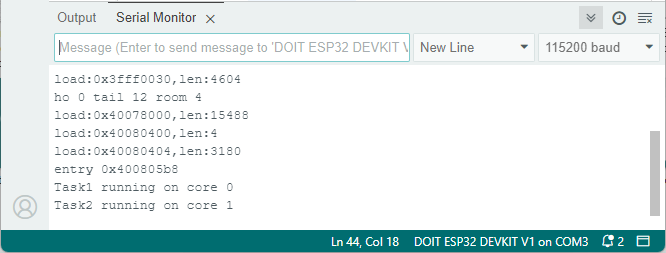
As expected, Task 1 is running on core 0, while Task 2 is running on core 1.
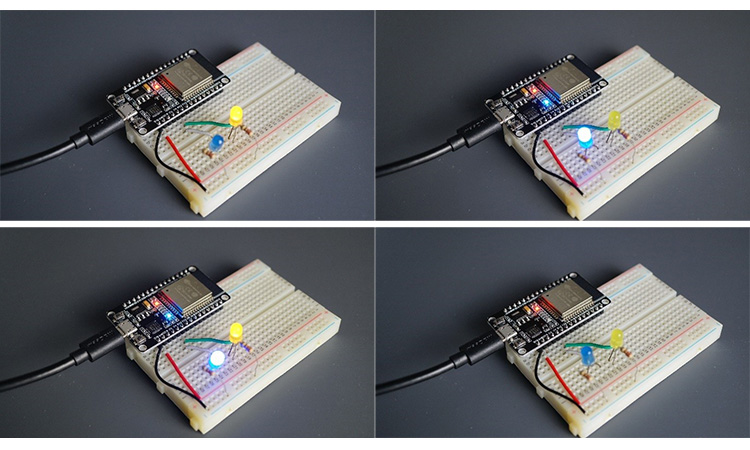
In your circuit, one LED should be blinking every 1 second, and the other should be blinking every 700 milliseconds.
In summary, in this tutorial, you learned that:
In this tutorial, we’ve provided a simple example with LEDs. The idea is to use this method with more advanced projects with real-world applications. For example, it may be useful to use one core to take sensor readings and another to publish those readings on a home automation system.




![ESP32 IR Receiver: How To Detect IR Remote Signals [Arduino IDE]](https://ebokify.com/wp-content/uploads/2026/01/ESP32-IR-Receiver-How-To-Detect-IR-Remote-Signals-Arduino-IDE-1-768x512.webp "ESP32 IR Receiver: How To Detect IR Remote Signals [Arduino IDE] 14")